Guide · Backup, files and new phone
Export your inventory to a spreadsheet
One CSV file with every item of your home, its place, purchase details and warranty end, ready for Excel, Numbers or Google Sheets. Your list is never locked in.
Before you start
- Some items in the home that is open. The export covers that home only; for another, switch to it and export again.
- A spreadsheet app on a phone or computer: Excel, Numbers, Google Sheets or LibreOffice.
In this guide
1. Export the file
Open Settings › Data & backup
Under Backup options is Export as spreadsheet (CSV): “Items with location, purchase and warranty. Opens in Excel, Numbers or Sheets”.
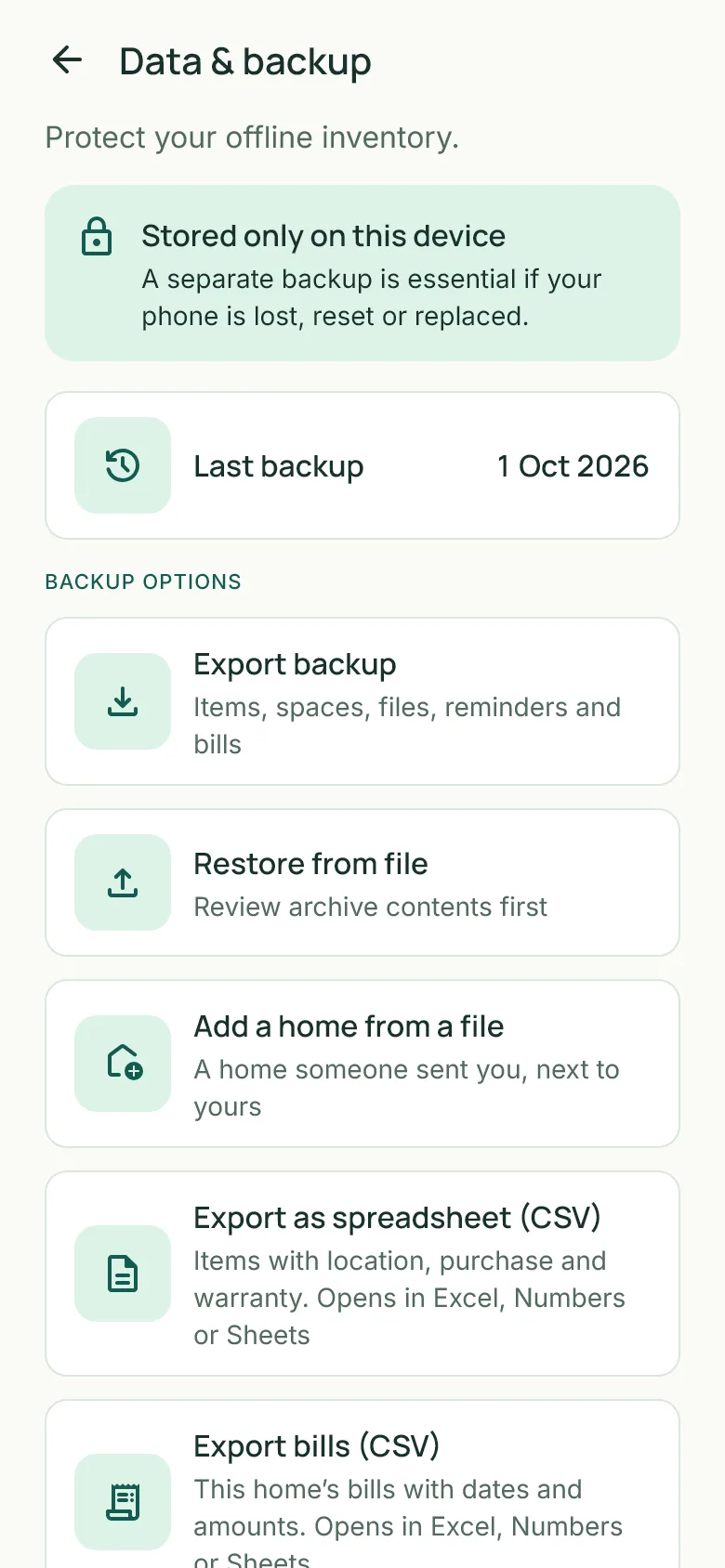
Tap it
Kavouki shows “Creating the spreadsheet…”, then your phone asks where to save the file, named like
kavouki-items-2026-11-01.csv.Pick a place and save
A folder, a cloud drive or a USB stick. Kavouki confirms: “Spreadsheet saved. Keep it private: it lists everything you own.”
Result: a CSV of your items where you chose. If you cancel, nothing is saved and nothing is shown.
2. What is in it
One row per item, sorted by place and then by name, under these thirteen columns:
Name · Location · Category · Quantity · Brand · Model · Serial number · Purchase date · Price · Currency · Warranty expires · Notes · Barcode
- Location is the path, such as “Kitchen / Shelf A”. Category is in your app's language.
- Dates are written as 2026-11-01, and prices as plain numbers with a point, such as 1234.50, so any spreadsheet can add them up.
- The column names are always in English, so a file made on a Greek phone imports on an English one and back.
- Deleted items are left out. Photos, documents, service records and reminders are not in a spreadsheet; for everything, make a backup.
Result: you know what each column holds before you open it.
3. Open it in a spreadsheet
Open the file
Double-click it on a computer, or open it from Files on the phone. Numbers and Google Sheets (File › Import) read it as it is; Greek text shows correctly, because the file is saved as UTF-8.
Everything in one column?
Excel does this on computers set to use a comma for decimals. Open an empty workbook, choose Data › From Text/CSV, pick the file, and set the delimiter to comma and the file origin to UTF-8.
Result: one item per row, one detail per column, ready to sort, filter or print.
4. The apostrophe at the start of some cells
A spreadsheet runs any cell that starts with =, +, - or @ as a formula, and a formula can do harm. So Kavouki puts an apostrophe in front of text that starts that way: a note like -10% in the sale becomes '-10% in the sale. Spreadsheets show it as plain text. Remove the apostrophe only if you trust what the cell says.
Result: nothing in the file can run as a formula when you open it.
Where your data goes
The file is written on your phone and saved only where you choose; Kavouki deletes its own working copy at once and sends nothing. The file lists what you own, where it is, serial numbers and prices, so keep it private. If you save it to a cloud drive or email it, that service holds a copy.
If something goes wrong
- “Nothing to export yet. Add an item first.” The open home has no items. Add one, or switch to the home you meant.
- “Couldn’t create the spreadsheet.” Check that the phone has free space, then try again.
- Greek letters look garbled. The spreadsheet guessed the wrong encoding. Import the file instead of double-clicking it, and choose UTF-8.
- Prices are not added up. On a computer that uses a comma for decimals, a price like 1234.50 can be read as text. In the import window, set the decimal separator to a point.
Questions
Is exporting free?
Yes, always. Backups, restore and CSV export and import are free and will stay free.
Can I bring the file back into Kavouki?
Yes: Settings › Data & backup › Import from spreadsheet (CSV). Importing only adds items, so importing the same file twice gives you two of everything. See import a spreadsheet.
Are my photos in the CSV?
No. A spreadsheet holds text and numbers. A .kavouki backup holds everything, photos and documents included.
Can I export all my homes at once?
The CSV covers the home that is open. Switch homes with the name at the top of the Home tab and export each one.
Still stuck? Write to support@kavouki.com with your phone model, the version in Settings › About, the spreadsheet app you use and what you see. Please do not send the file itself. Settings › Help & support › Copy diagnostics gives you a short, anonymous list to paste in.