Guide · Backup, files and new phone
Import your home inventory spreadsheet
At the end the list you keep in a spreadsheet is in Kavouki, with its rooms, prices and warranty dates, ready for photos and reminders. You check a preview before anything is added.
Before you start
- Your list, or the template: download it here, or get it in the app (part 1).
- A spreadsheet app: Excel, Numbers, Google Sheets or LibreOffice, on a computer or the phone.
- In Kavouki, the home you want to fill is open: the items go into that home.
1. Get the template
Open Settings › Data & backup
Scroll to the spreadsheet rows under Backup options.
Tap Get the spreadsheet template
Your phone asks where to save
kavouki-template.csv. Then you see "Template saved. Fill it in, then import it here."Open it in your spreadsheet app
You see one row of column names and two example rows, a cordless drill and a kettle.
Result: a spreadsheet with exactly the columns Kavouki reads. The template on this site is the same file.
2. Fill it in and save it as CSV
One row per thing. Only Name is required; leave any other cell empty.
| Column | What to put | Example |
|---|---|---|
| Name | What it is (up to 120 characters) | Cordless drill |
| Location | The space; a slash for a space inside another | Garage / Shelf A |
| Category | A category as Kavouki names it, or one word such as Tools, Furniture or Electronics | Tools |
| Quantity | A whole number; empty means 1 | 1 |
| Brand, Model, Serial number | As on the label | Bosch |
| Purchase date | 2025-03-14, 14/3/2025 or 14.3.2025 | 2025-03-14 |
| Price | The price of one, with a dot or a comma | 129.99 |
| Currency | Three letters; empty means the home's currency | EUR |
| Warranty expires | The date the warranty ends | 2027-03-14 |
| Notes | Anything else | Charger in the blue case |
| Barcode | The number under the bars | 4059952526683 |
Replace or delete the two example rows
They import like any other row. Then add your own rows below the column names.
Save the file as CSV
In Excel choose File › Save As › CSV UTF-8. In Numbers, File › Export To › CSV. In Google Sheets, File › Download › Comma-separated values. Excel's ";" separator is fine too.
Put the file on your phone
Save it to the phone, or to a cloud drive its file picker can open.
Result: a .csv file Kavouki can read. The column names may also be in Greek, in any order: Όνομα, Θέση, Κατηγορία, Ποσότητα, Μάρκα, Μοντέλο, Σειριακός αριθμός, Ημερομηνία αγοράς, Τιμή, Νόμισμα, Λήξη εγγύησης, Σημειώσεις, Γραμμωτός κώδικας.
An import only adds. Import the same file twice and every item is there twice, so import each list once.
3. Import it
Tap Import from spreadsheet (CSV)
It is in Settings › Data & backup. Choose your file; Kavouki reads it without changing anything ("Reading the spreadsheet…").
Check the preview
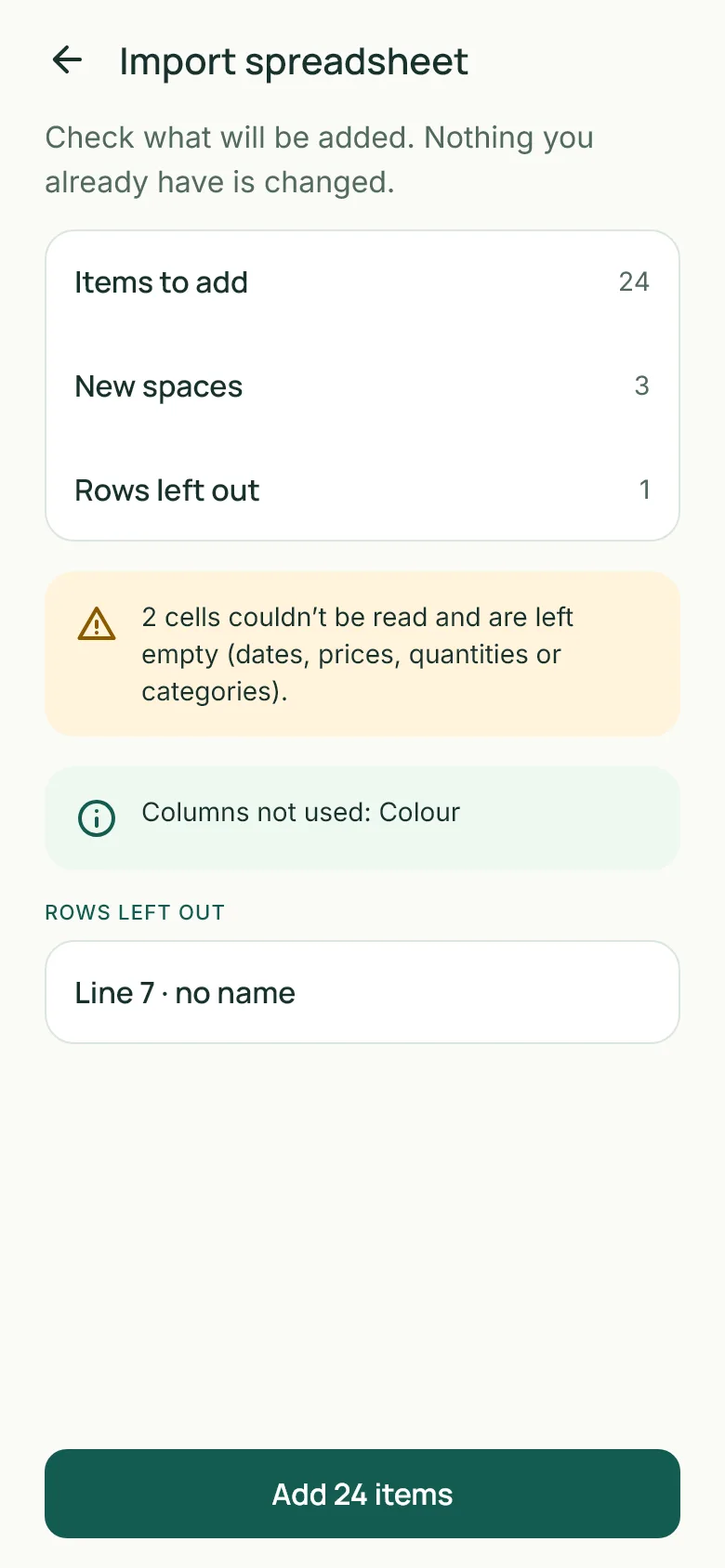
Import spreadsheet shows the Items to add, the New spaces it will create and the Rows left out, each with its line, such as "Line 7 · no name". A note says if any cells could not be read, and which columns are not used.
Tap Add 24 items
The button shows your number. Once started, the import runs to the end ("Adding items…").
Tap Go to My Home
First you see "24 items added. Everything is on your dashboard. 3 new spaces were created."
Result: your list is in Kavouki, in its rooms and boxes. Open any item to add a photo, a receipt or a reminder.
4. What is left out
- Rows without a name, or with a name over 120 characters: listed by line. Fix them and import only those rows in a new file.
- Cells Kavouki cannot read (a date, price, quantity or category): left empty and counted. The item is still added.
- Columns Kavouki does not know: named under "Columns not used" and ignored.
- Photos, receipts and manuals: a spreadsheet cannot carry them. Add them to the items afterwards.
- Warranty reminders: the end date comes in, but no reminder is set. Open the item's warranty to choose one.
Spaces are matched by name, ignoring capitals: "Garage / Shelf A" uses the Garage you already have and creates Shelf A inside it. A new top-level space becomes a room; one inside it becomes storage.
Where your data goes
Kavouki reads the file on your phone and deletes its own working copy after the import; nothing is sent anywhere. Your spreadsheet stays where you saved it. It lists what you own, so keep it private.
If something goes wrong
A refused file shows "Couldn't import this file", the reason and Choose another file. Nothing was added.
- "This isn't a readable spreadsheet." It is probably an .xlsx or .numbers file. Save it as CSV (UTF-8) and import that.
- "The first row needs a "Name" column." The column names are missing or misspelled. Copy the first row from the template.
- "The file is larger than 5 MB or has more than 5,000 rows." Split it into smaller files and import them one by one.
- "Kavouki couldn't open this file." It may still be only in a cloud drive. Copy it to your phone and try again.
- Greek letters look wrong after the import. The file was not saved as UTF-8. Delete those items, save the file again as CSV UTF-8 and import it again.
Questions
Can I import an Excel file directly?
No: save it as CSV first. Every spreadsheet app can do this, and the file keeps your Greek text if you choose CSV UTF-8.
Will the import change things I already have in Kavouki?
No. It never changes or deletes an item or a space; it only adds new ones.
Which home do the items go to?
The home that is open in Kavouki. If you have several, switch to the right one first by tapping its name at the top of the dashboard.
Can I get my list out of Kavouki the same way?
Yes. Export as spreadsheet (CSV) uses the same columns, so an exported file imports again on any phone, in English or Greek. See Export to CSV.
Still stuck? Write to support@kavouki.com with the message the preview shows, your phone model and the Kavouki version (Settings › About). Send the first two rows of the file only if you are happy to, with anything private removed.