Guide · Backup, files and new phone
Back up Kavouki and move to a new phone
At the end you will have one file with everything you keep in Kavouki, saved somewhere other than your phone, and you will know how to bring it back on a new phone. Kavouki never backs up by itself, so this file is what saves your inventory if the phone is lost.
Before you start
- A place to keep the file away from the phone: a computer, a USB stick, or a cloud drive you trust.
- Some free space on the phone. With many photos the file can be large.
- For a new phone: Kavouki installed on it.
In this guide
1. Export a backup
Open Settings › Data & backup
You see "Stored only on this device", the date of your Last backup (or Never) and the Backup options.
Tap Export backup
Kavouki packs your items, photos and documents ("Keep Kavouki open"), then shows Your backup is ready with the number of items and files and the size.
Tap Save backup file
Your phone asks where to save it. Pick a folder, a USB drive or a cloud drive you trust. The file is named like
kavouki-backup-2026-11-01.kavouki.Tap Done
You see Backup saved first: "Keep it somewhere other than this phone."
Result: Last backup shows today's date, and the backup reminder on the dashboard goes away.
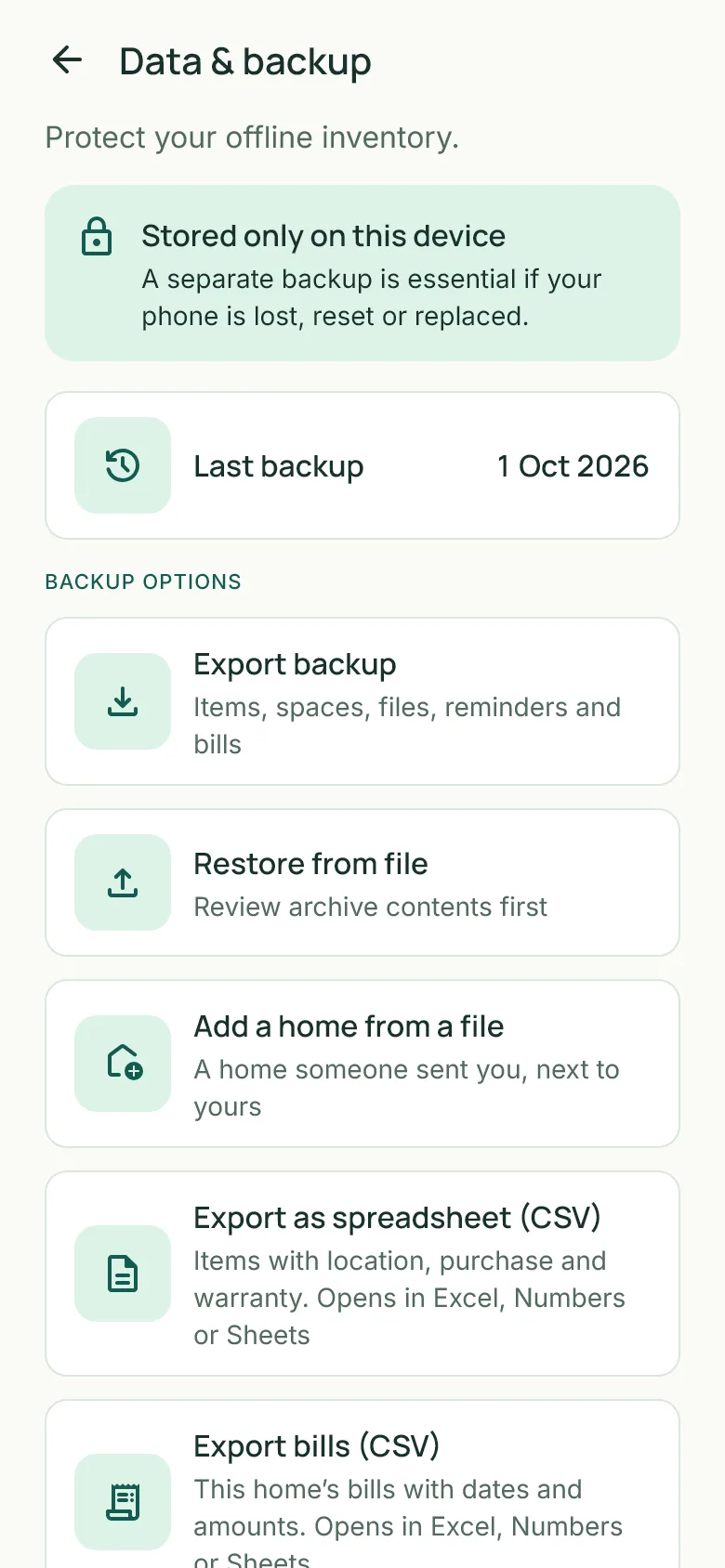
Tip: when your last backup is 30 days old or more, the dashboard says so ("Last backup 41 days ago"). Tap Back up now and you land on the same screen.
2. Keep the file somewhere safe
- Off the phone. A copy on the phone alone goes when the phone goes. A computer, a USB stick or a cloud drive you trust all work; two places are better than one.
- Private. The file can hold photos, receipts, serial numbers and purchase details, and Kavouki does not add a password to it. Keep it as carefully as the papers it replaces.
- Fresh. One file holds everything: every home, its spaces and items, photos and documents, warranties, reminders and service records, the car's km and fill-ups, meters and handover reports. Export a new one after a big change.
Kavouki has no account and no copy of your data. If the phone is lost, reset or broken, only a backup file you exported can bring your inventory back.
3. Restore it on the new phone
Put the file where the new phone can open it
Download it from your cloud drive, or copy it onto the phone from your computer or USB stick.
Open Kavouki, tap Get started and create a home
Any name will do: the restore replaces it. On Which rooms do you have? tap Skip.
Open Settings › Data & backup and tap Restore from file
Choose your
.kavoukifile. Kavouki checks it before anything changes ("Checking the backup…").Read the preview
Restore backup shows when the backup was made, on which kind of phone, what is in it (homes, items, photos and more) and the warning "This replaces everything on this phone".
Tap Replace and restore, then Replace
Kavouki asks once more: "Replace your data?". Then it restores; keep Kavouki open.
Tap Go to My Home
You see Restore complete: "All your data is back".
Result: your homes, items, photos, documents and reminders are on the new phone. For 24 hours you can still go back: Undo last restore in Data & backup puts back what the phone had before.
A restore replaces everything on that phone. If it already holds things you want to keep, tap Back up current data first on the preview: it exports what is there now, then brings you back to the preview.
4. Android and iPhone backups
- Android: Kavouki switches off Android's own app backup and phone-to-phone transfer for its data, so Google's backup or a transfer to a new phone brings Kavouki back empty. Only your
.kavoukifile carries your inventory. - iPhone: your iCloud or computer backup of the iPhone includes Kavouki's data, as it does every app's; that is your own choice in the iPhone's settings. Set up a new iPhone from that backup and Kavouki comes back with your data. Keep a
.kavoukifile anyway: it is the only way to move to Android, and your safety net if iCloud Backup is off. - Between the two: a backup made on Android restores on an iPhone, and the other way round.
Where your data goes
The backup file is made on your phone and goes only where you save it. Kavouki sends it nowhere and keeps no copy. Whoever has the file can read what is in it, so share it only with people you trust.
If something goes wrong
Every restore error ends with "Nothing on your device was changed": your current data is safe.
- "Couldn't create the backup" (when exporting): check that the phone has free space and tap Try again.
- "Couldn't open this file": the phone could not read the file you chose, often one that is still only in a cloud drive. Copy or download it to the phone and try again.
- "This backup needs a newer Kavouki": update Kavouki on this phone, then restore again.
- "Couldn't read this backup" or "Files are missing from this backup": the file is damaged or incomplete, usually from an interrupted copy. Copy it again from where you keep it, or use an older backup.
- "This backup is too large" or "Couldn't finish the restore": Kavouki restores backups up to 4 GB and needs space to unpack them. Free some space and try again.
- "This file holds one home": the file was made with Send this home to another phone. Tap Add as a new home instead to keep what is already on the phone.
Questions
Does Kavouki back up by itself?
No. Kavouki has no servers and makes a backup only when you export one. On iPhone, your own device backup also includes Kavouki; on Android, only your exported file does.
Can I move from Android to iPhone, or back?
Yes. Export a backup on the old phone and restore it on the new one; the file works on both.
I restored the wrong file. Can I go back?
Yes, for 24 hours. Open Settings › Data & backup and tap Undo last restore. It puts back the data the phone had before the restore.
Can I give just one home to my partner?
Yes, without accounts and for free: see Send a home to another phone. Their own homes stay as they are.
Still stuck? Write to support@kavouki.com with the exact message you see, your phone model and the Kavouki version (Settings › About). Please do not send the backup file itself unless we ask and you agree.