Guide · Backup, files and new phone
Send a home to another phone
Make one file with everything about a home and add it on another phone: your partner's, a flatmate's or your own second phone. There are no accounts; the file goes only the way you send it.
Before you start
- Kavouki on both phones. The file will work between Android and iPhone in either direction once the iPhone version is out.
- A way to move a file: email, a messaging app, a cloud drive or a cable.
- Nothing to buy: adding the home is free, even if the other phone already has a home of its own.
In this guide
1. Make the file
Open the home you want to send
If you keep several, tap the home's name at the top of the Home tab and pick it.
Open Settings › Home & preferences
Under the home's details is Send this home to another phone: “A file with this home only, for example for your partner’s phone”. Tap it.
Read what goes in
Send this home opens. The file holds this home's spaces, items, photos, documents, warranties, reminders and care history, and nothing from your other homes.
Tap Create file
The file is ready shows its name, such as
kavouki-home-our-home-2026-11-01.kavouki, its size, and how many items, spaces, photos and documents it holds.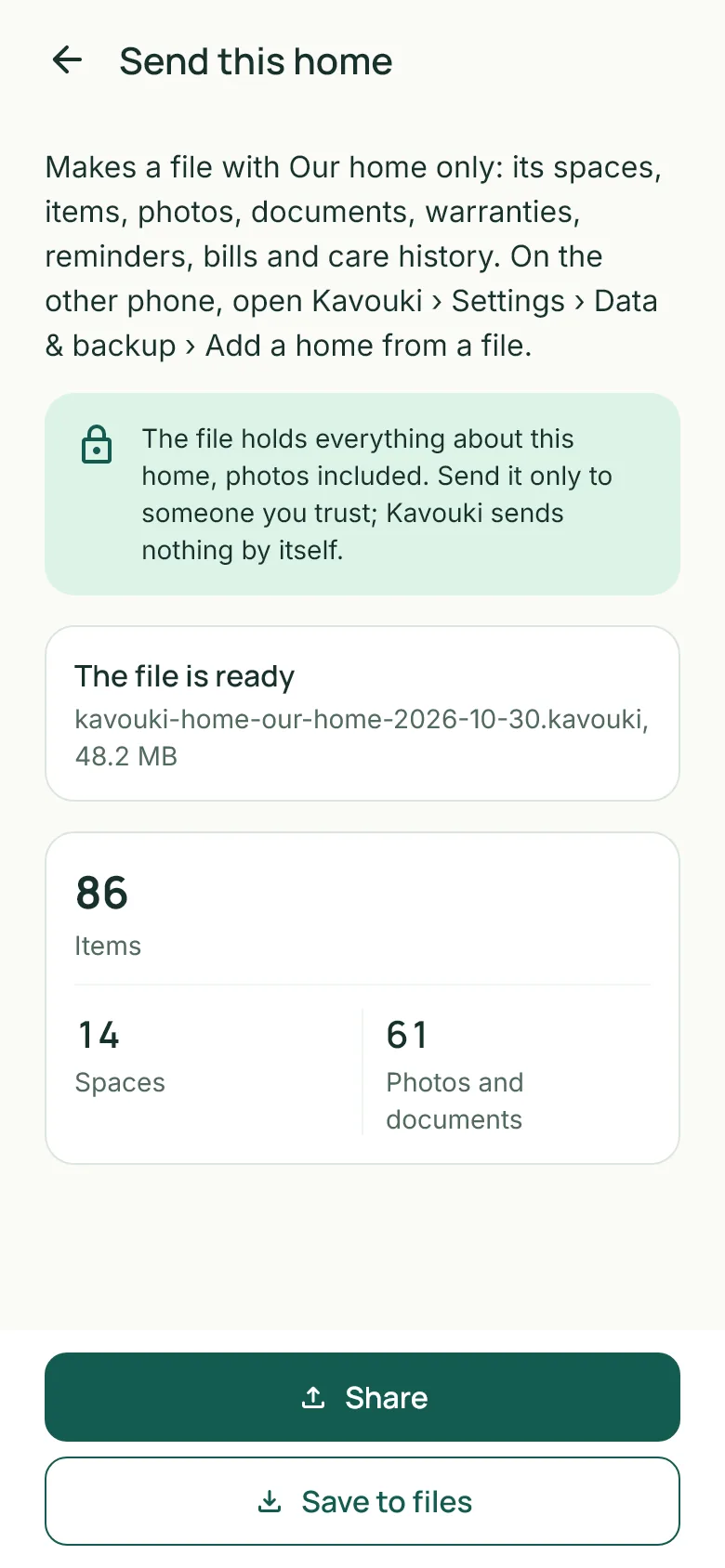
Result: one .kavouki file with this home and nothing else. It is not a backup, so Last backup does not change.
2. Send it
Tap Share or Save to files
Share opens your phone's share sheet: email, a messaging app, a cloud drive, or a phone close by. Save to files puts it in a folder you choose.
Close the screen
Kavouki deletes its own copy when you leave.
Result: the file is on its way. With many photos it can be large; if an email service refuses it, use a cloud drive or a cable.
3. Add it on the other phone
Keep the file on the other phone
Save the attachment or download it from the drive, so it is in the phone's files.
Open Settings › Data & backup
In Kavouki on that phone, tap Add a home from a file: “A home someone sent you, next to yours”.
Tap Choose file
Pick the
.kavoukifile. Kavouki copies it and checks it before anything changes.Look at the preview
You see when the file was made and What comes with it: spaces, items, warranties, service records, reminders, photos and documents, and the car, meters or handover reports when it has any. A full backup with several homes first asks Which home?
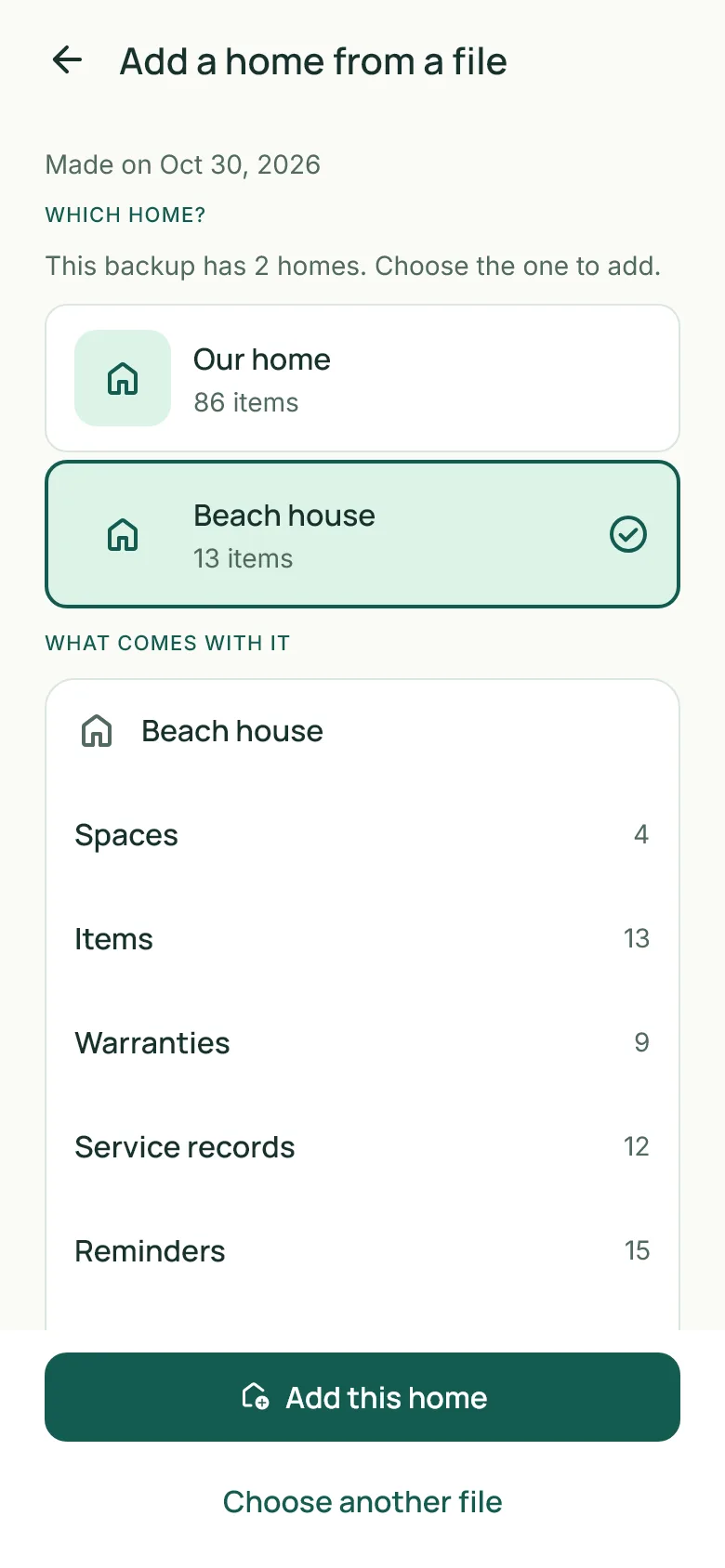
Tap Add this home
After “Adding the home”, Kavouki says the home is on this phone: “Its items, photos and reminders are here now, next to your other homes. Nothing else changed.” Tap Open and the home's name to go there.
Result: the home sits next to the other homes on that phone. Switch between them with the home's name at the top of the Home tab.
Adding a home from a file is free, even on a phone that already has homes of its own. Nothing else on that phone changes.
4. Keeping both phones up to date
There is no live sync. What you change on one phone stays on that phone, and nothing is sent by itself. To pass on changes, make and send a new file.
- On a phone that holds only this shared home: use Restore from file with the new file. It replaces the old copy, and you can undo it for 24 hours.
- On a phone with its own home as well: adding the new file adds a second copy next to the old one. Kavouki does not merge homes, and in this version a single home cannot be removed on its own.
Result: you decide when the other phone catches up, and you know what it will hold.
Where your data goes
The file holds everything about this home, photos included: what you own, where it is, serial numbers, receipts and values. Kavouki sends nothing by itself; the file goes only through the app you choose, and that service (your email or cloud provider, a messaging app) may keep a copy. Send it only to someone you trust. Kavouki deletes its own copy when you close the screen. Settings such as app lock and notifications stay on each phone.
If something goes wrong
- “The file is damaged or is not a Kavouki file.” Some apps change files on the way. Send it again through a cloud drive or a cable.
- “The file comes from a newer Kavouki.” Update Kavouki on this phone, then try again.
- “Some photos or documents are missing from the file.” Make a new file on the first phone and send it again.
- “The file could not be read. Choose it again.” Copy the file onto the phone first, rather than opening it from a link.
- “The home could not be added. Nothing on this phone changed.” Check that the phone has free space and try again.
Questions
Do the two phones stay in sync?
No. Each phone keeps its own copy. To pass on changes, send a new file.
Is it the same as a backup?
No. A backup holds every home and your settings, and restoring it replaces everything. This file holds one home and is added next to the homes already there.
Is it free?
Yes. Sending a home and adding it are free, even on a phone that already has a home.
Do my QR labels work on the other phone?
No. An added home gets new links, so print labels for it from that phone.
Still stuck? Write to support@kavouki.com with both phones' models, the Kavouki version on each (Settings › About) and the message you see. Please do not send the file itself. Settings › Help & support › Copy diagnostics gives you a short, anonymous list to paste in.