Guide · Getting started
Add items, one photo each
At the end every photo you took is an item in the right room or box, with a name you chose or a number you can change later. It is the quickest way to list a shelf, a cupboard or a whole room.
Before you start
- The room, cupboard or box you want to fill, already in Kavouki (see Start with one room).
- Good light, and one thing per photo.
- Kavouki asks for the camera the first time. You can also use photos you already have.
1. Open the camera
Open the room or box and tap Add items, one photo each
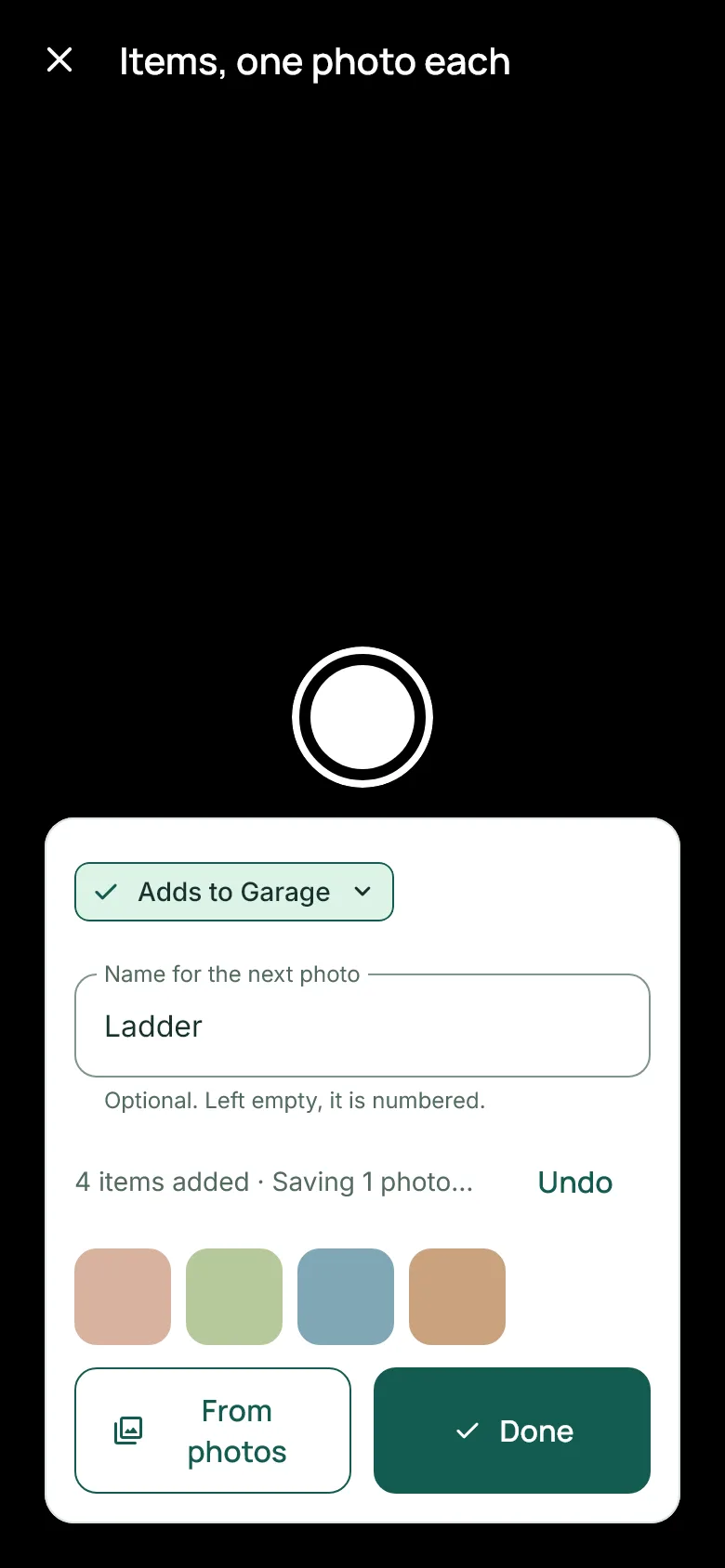
On the Home tab, the Add button has it too, as Items, one photo each, and so does the bottom of the Quick add sheet. The camera fills the screen, titled Items, one photo each.
The first time, tap Allow the camera
Kavouki explains that the photos stay on this phone, then your phone asks for permission. Allow it once and the shutter appears.
Check where the items go
The chip on the card says Adds to Garage (your space's name). Tap it to choose another space; the next photos go there.
Result: the camera is open and ready, and you know which space the items will land in.
2. Take the photos
Type a name first, if you like
Write it under Name for the next photo. Left empty, the item is numbered: "Item 1", "Item 2"… The field empties after each photo.
Tap the shutter
The photo becomes an item at once. The counter shows how many are added and saved, for example "4 items added · Saving 1 photo…"; you can keep shooting while it saves. The newest photos show under the counter.
Made a mistake? Tap Undo
The last photo and its item are removed, and its number is free again.
Result: every photo is already an item in the space, with its photo. Nothing waits for you to press save.
3. Name your items
Tap Done
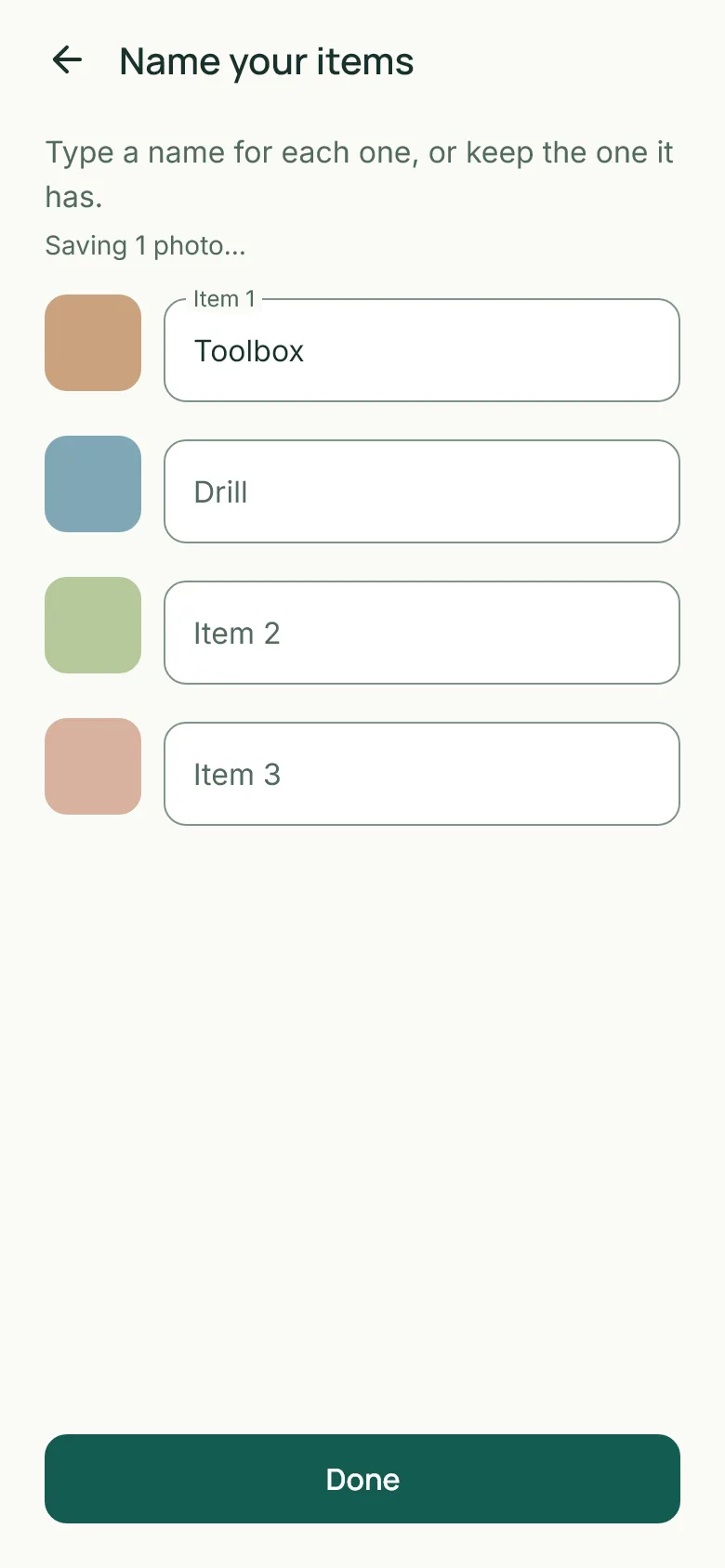
Close and your phone's Back do the same. You see Name your items: each new item with its photo and its current name.
Type a name for each, or keep the one it has
An empty field keeps the name. The keyboard's Next key moves to the next item. The back arrow takes you to the camera again, keeping what you typed.
Tap Done
The names are saved and you are back in the space.
Result: the space lists the new items with their photos and names. Open any of them later to add a price, a receipt or a warranty.
4. Add photos you already have
On the camera screen, tap From photos
Your phone's photo picker opens. Choose up to 30 photos at a time.
Say what they are
For two or more photos Kavouki asks What are these photos? Tap A new item for each photo, or One item with these photos when they show the same thing from different sides; an item holds up to 10 photos, so the first 10 go in. A single photo becomes one item.
Tap Done and name them
Name the new items on Name your items as above.
Result: old photos of your things are now items too. This works even if you never allowed the camera.
Kavouki keeps its own copy of each photo, re-saved without the location where it was taken. The photos in your gallery stay as they were.
Where your data goes
The camera works only while this screen is open, and the photos are stored in Kavouki on this phone. Kavouki sends nothing anywhere and does not analyse your photos.
If something goes wrong
- "That photo did not come out. Try again." The camera could not take it, and nothing was added. Tap the shutter again.
- "One photo could not be saved. The others are safe." Usually the phone is low on space. No item is kept without its photo, so take that one again.
- "Camera access is off." You said no to the camera before. Tap Open Settings and allow the camera for Kavouki, or use From photos.
- "The names could not be saved. Please try again." The items are saved already; tap Done again.
- The phone closed Kavouki in the middle. Items that were saved stay. A photo that was still waiting is dropped; take it again.
Questions
Is it free? Is there a limit?
It is free, with no limit on items. From photos takes up to 30 photos at a time; repeat it for more.
Does Kavouki recognise what is in the photo?
No. Kavouki does not analyse photos and sends them nowhere. You name each thing, now or later.
Are the photos saved in my gallery?
No. Photos taken here are kept only in Kavouki. Photos you choose with From photos stay in your gallery unchanged.
Can I fill a box instead of a room?
Yes. Open the box and tap Add items, one photo each, or change the space with the chip on the camera card.
Still stuck? Write to support@kavouki.com with your phone model, the Kavouki version (Settings › About) and the message you saw. Please do not send photos of your things.