Guide · Insurance
Make an insurance report of your home contents
One PDF with every room, each item's photo and value, the total next to your sum insured, and a page for you to sign. It is made on your phone and leaves only when you share it.
Kavouki Plus is not on sale yet, so Kavouki does not show this tool until it is. When it does, everything on this screen works without Plus; creating the PDF needs it. See Free and Plus.
Before you start
- Your things in Kavouki, in their rooms, ideally with a photo and a price. Adding items with one photo each is the quick way.
- Your sum insured, if you want the comparison: see set your sum insured.
In this guide
1. Open the report
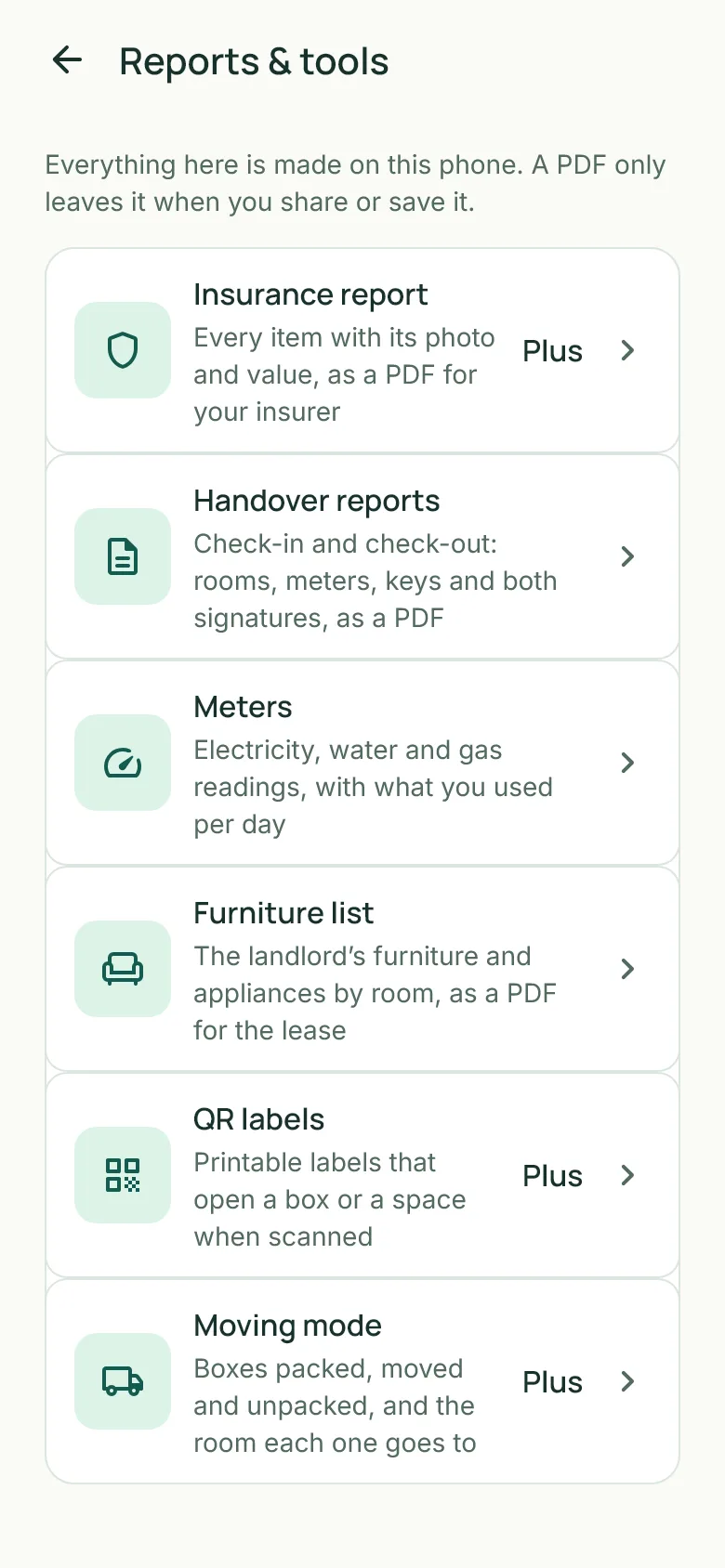
Open Settings › Reports & tools
A line at the top says everything here is made on this phone. Insurance report carries a small Plus tag.
Tap Insurance report
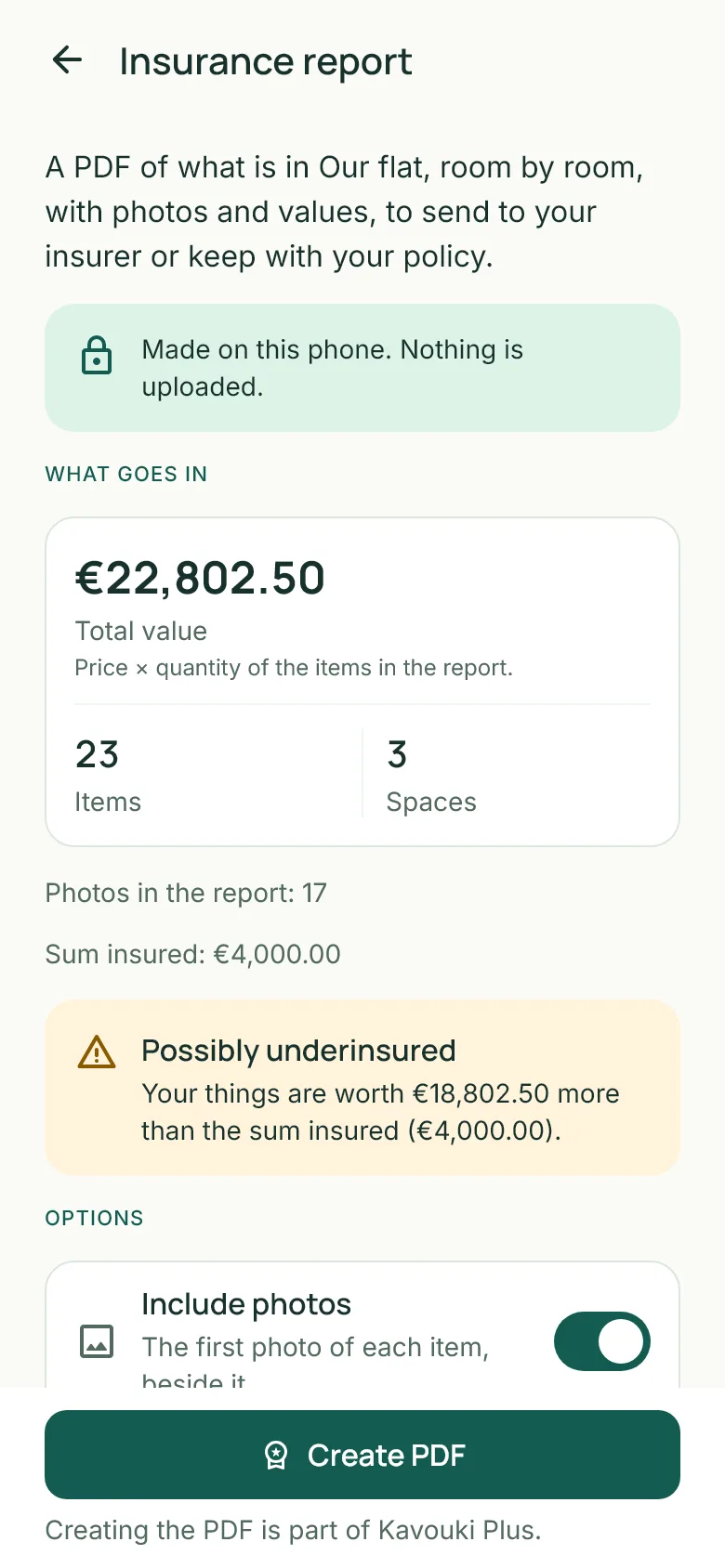
Under What goes in you see the total value, the number of items and spaces, how many photos, your sum insured and, if your things are worth more, Possibly underinsured.
Result: before making anything, you see what the report would say.
2. Choose what goes in
Include photos
On at first: the first photo of each item sits beside it. Turn it off for a shorter file.
Include the landlord's items
Shown only if you marked items as the landlord's. Off at first: “a tenant’s contents policy covers only your own things.”
Include items without a value
Shown only if some items have no price. On at first: they are listed with “No value given”.
Result: the numbers at the top follow your choices. If you change an option after making a PDF, make it again.
3. Create the PDF and send it
Tap Create PDF
Without Plus the button carries the Plus mark and the line “Creating the PDF is part of Kavouki Plus.”; tapping it shows what Plus includes. With Plus you see “Creating the PDF…”.
See “Your report is ready”
With the file name and the number of pages. It stays on the phone until you share or save it, and Kavouki deletes its own copy after a day.
Tap Share or Save to files
Share opens your phone's share sheet (email, messages). Save to files lets you pick a folder, a drive or a USB stick.
Result: a PDF of your home contents, where you chose to put it. Keep one copy away from your home and phone.
4. What the PDF holds
A4 pages in the app's language, with “Page x of y” and the home's name at the foot of each page.
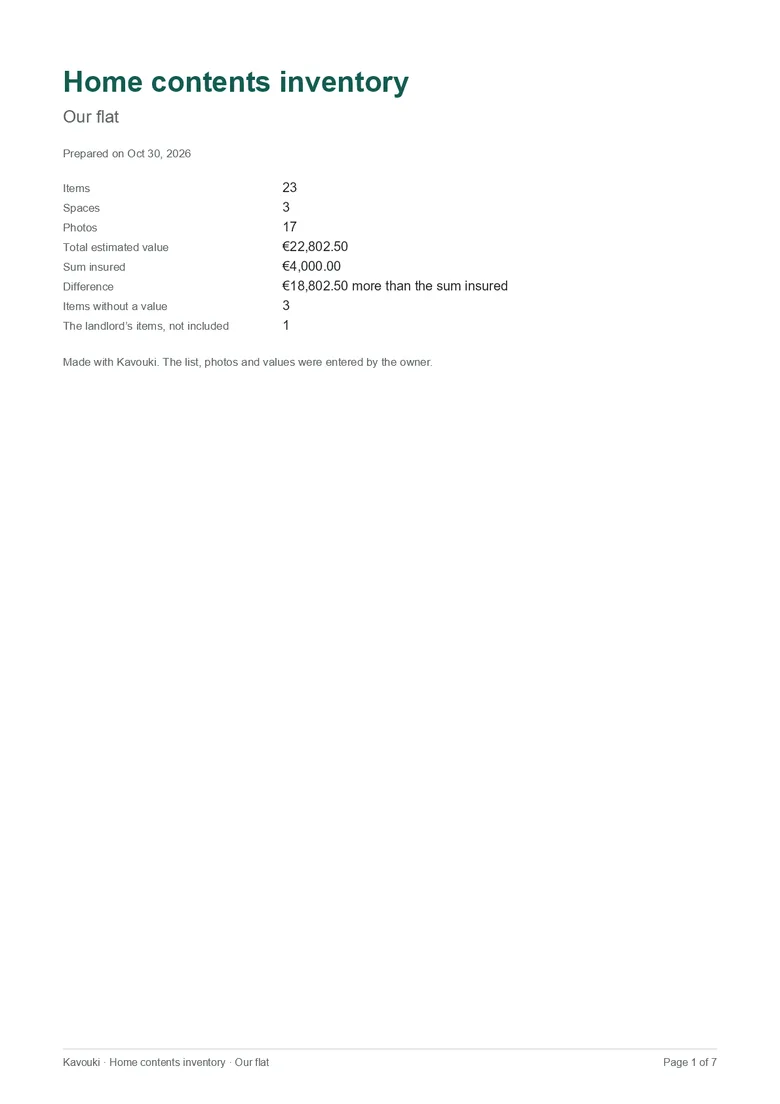
- The cover: “Home contents inventory”, the home, the date it was prepared, how many items, spaces and photos, the total estimated value, your sum insured and the difference between them.
- Room by room: each item with its first photo, name, category, brand and model, serial number, barcode, purchase date, quantity, price, warranty end, the photo's date, whether a receipt is saved in Kavouki, and whether it belongs to the landlord. A subtotal closes each space.
- A summary by space, with the total.
- The last page: an owner's declaration with lines for your name, the date and your signature, and a short “Good to know”.
The values are your own estimates, usually what you paid, not professional valuations, and photo dates come from the phone. The report is a record you made; it does not promise that an insurer will accept a claim. Ask your insurer what they need.
Where your data goes
The PDF is made on your phone; Kavouki uploads nothing and has no copy. It goes only where you send it: to your email or messaging app, a cloud drive or a computer. It shows what you own, room by room, with serial numbers and values, so send it only to people you trust, such as your insurer or broker. Kavouki deletes its own copy after a day; copies you shared or saved are yours to keep or delete.
If something goes wrong
- “Nothing to report yet”. This home has no items. Add some first; the report lists them room by room.
- “Nothing to put in the report with these options.” Turn on Include items without a value or the landlord's items.
- “The PDF could not be created.” Check that the phone has free space, then try again. Turning photos off makes a smaller file.
- “Not saved.” The save was cancelled or failed. Try Save to files again, or use Share.
- No Insurance report in Reports & tools. Plus is not on sale yet, so your version may hide its tools.
Questions
Will my insurer accept this report?
We cannot say. It is a dated list with photos and the values you entered. Insurers decide what they ask for and accept, so check with yours.
Why is an item's price not in the total?
Totals count only prices in the home's currency. Items priced in another currency are listed with their own price and named on the cover, but not added.
Can I make it in Greek?
The PDF is in the app's language, which follows your phone's language setting for Kavouki.
Can I print it?
Yes. The pages are A4, and the last page has lines for your name, the date and your signature.
Still stuck? Write to support@kavouki.com with your phone model, the version in Settings › About and the message you see. Please do not send the report itself. Settings › Help & support › Copy diagnostics gives you a short, anonymous list to paste in.