Guide · Renting and letting
Record meter readings and see what you use
At the end every meter of your home has its readings, with dates and photos, and Kavouki shows what you used per day between them. It helps with checking a bill, with moving in or out, and with a handover report.
Before you start
- The home the meters belong to, open in Kavouki.
- The supply or meter number if you want it on record: it is on the bill.
- A torch for a dark cupboard, and the phone for a photo of the number.
In this guide
1. Add a meter
Open Settings › Reports & tools › Meters
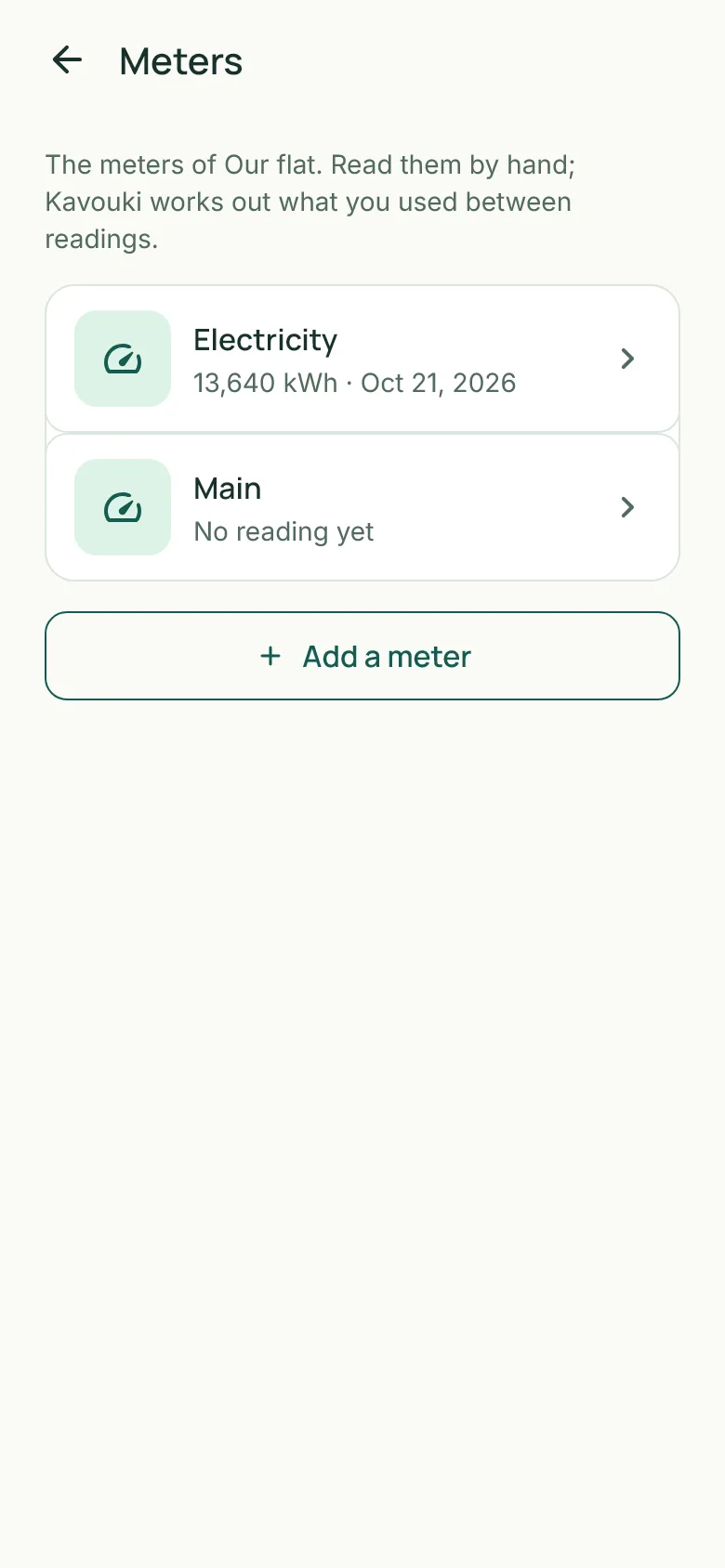
You see the meters of the home that is open: "Read them by hand; Kavouki works out what you used between readings." With none yet: "No meters yet".
Tap Add a meter and choose What it measures
Electricity, Water, Gas, Heating oil or Other. The Unit follows (kWh, m³, l); change it if your meter shows another.
Add a name and number if you like, then tap Save meter
Name (optional), for example "Boiler room" or "Upstairs flat", and Supply or meter number (optional), as on the bill.
Result: the meter is in the list, with "No reading yet".
2. Add a reading
Tap the meter
Its page shows what it measures and its number, then Readings: "No readings yet. Add the first one with today's number on the meter."
Tap Add a reading and type the number
Under Reading (kWh), type the number on the meter; decimals are fine, with a comma or a dot. From the second reading on, the field shows the last one as a hint.
Check the Date and add a Photo of the meter
The date cannot be in the future. The photo is optional: it shows the number you read.
Tap Save reading
You are back on the meter's page, with the new reading on top.
Result: a dated reading, with its photo if you took one.
3. Read what you used
From the second reading on, each one shows what was used since the one before it:
- "+123.4 kWh in 30 days, 4.11 kWh a day": the difference, the days between the readings, and the use per day.
- "Lower than before: meter replaced or reset?": the number went down. Kavouki does not subtract it; check the reading, or note that the meter was changed.
- "For a handover report": the reading was typed in a check-in or check-out report, and shows here too.
The Meters list shows each meter's latest reading and its date.
Tip: read the meters on the day the bill arrives, or on the same day each month. Use per day then compares easily with the bill, and a sudden jump stands out.
4. Correct or delete
Tap a reading to change it
Edit reading opens. Change the number, the date or the photo and tap Save reading, or tap Delete reading; its photo goes with it.
Tap the pencil to change the meter
Edit meter changes its kind, unit, name or number. Delete meter removes it with all its readings and their photos, also from handover reports.
Result: the use per day is worked out again from the corrected readings.
Where your data goes
Meters, readings and photos stay in Kavouki on this phone, and photos are re-saved without their location. Kavouki connects to no supplier and sends nothing. They are included when you export a backup.
If something goes wrong
- "Enter the number on the meter, for example 12345.6": the reading has letters or two decimal marks. Type only the digits and one decimal mark.
- "The date can't be in the future": pick today or an earlier day.
- "The reading is saved, but the photo could not be added. Try another photo." Open the reading and add the photo again.
- "Enter a unit, up to 8 characters": the unit is empty or too long. Type it as on the meter, such as kWh or m³.
Questions
Does Kavouki read the meter or connect to my supplier?
No. You read the meter and type the number; Kavouki works out the rest on the phone and connects to no one.
Is it only for rented homes?
No. Owners use it to keep an eye on bills or a heating-oil tank. In a rented home the same readings feed the handover reports.
Is it free?
Yes: meters, readings, photos and the use per day are free, with no limit.
Still stuck? Write to support@kavouki.com with the message you see, your phone model and the Kavouki version (Settings › About).