Guide · Renting and letting
Make a move-in handover report
At the end the landlord and the tenant have the same PDF: the date, the keys, the meter readings and the condition of every room with photos, signed by both of you on the phone. It records how the home was on day one, so there is something clear to compare with when the tenant moves out.
Before you start
- The rented home in Kavouki, with its rooms (see Start with one room; you do not need to list its contents). The report gets one room for each room of the home.
- Both names, the deposit and the keys you hand over.
- The meters: add them in Meters first (see Record meter readings) or from the report.
- Both of you in the home, a charged phone and good light. Either the tenant or the landlord can make the report.
Prefer paper? Print the free handover report template.
In this guide
1. Start the check-in
Open the rented home in Kavouki
Its name is at the top of the dashboard. If another home is open, tap the name and pick the right one: the report uses the home that is open.
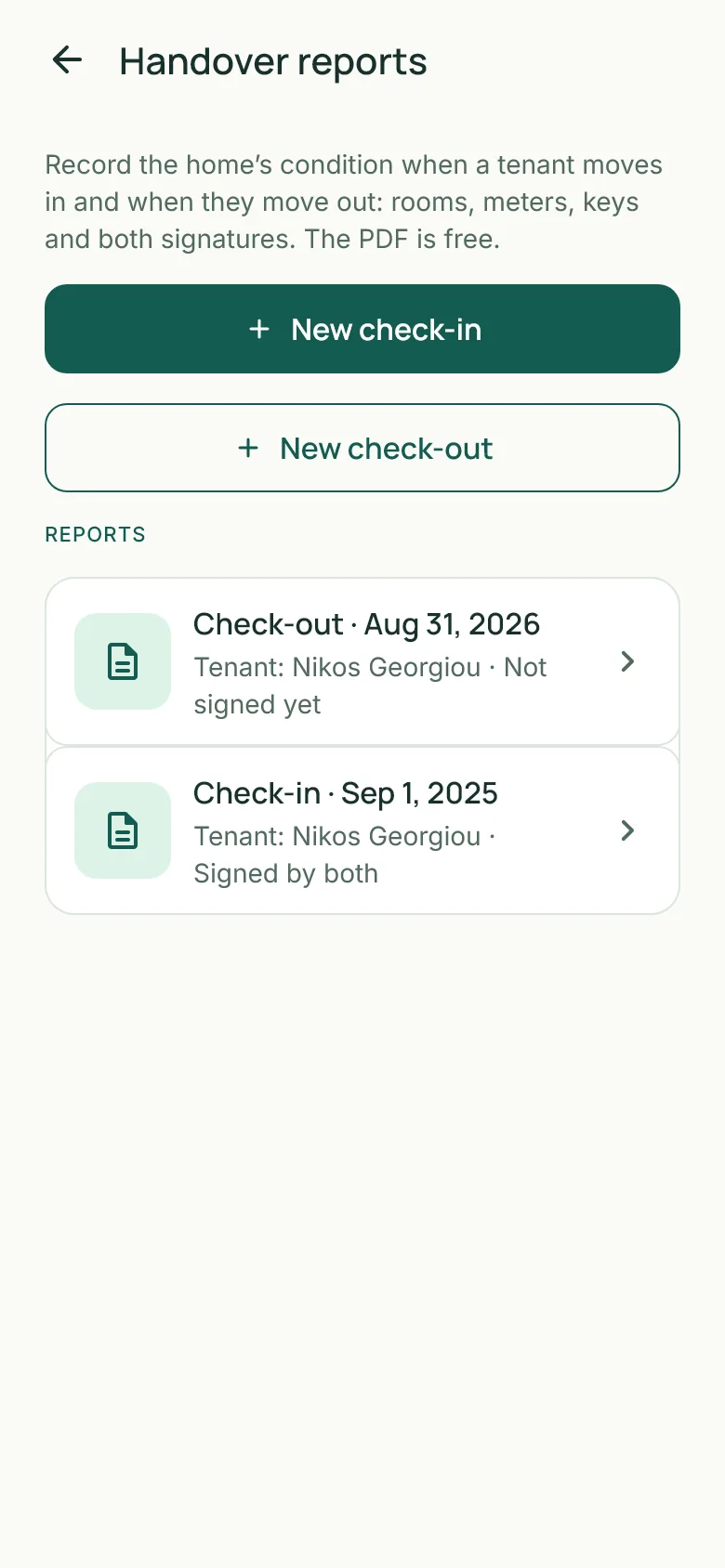
Open Settings › Reports & tools › Handover reports
You see what the report is for, "The PDF is free.", and two buttons: New check-in and New check-out.
Tap New check-in
The Check-in report opens, dated today, with one room for each room of the home. At the top: "All changes saved on this phone".
Result: an empty report that saves as you type. You can leave and come back to it from the list at any time.
2. Details and keys
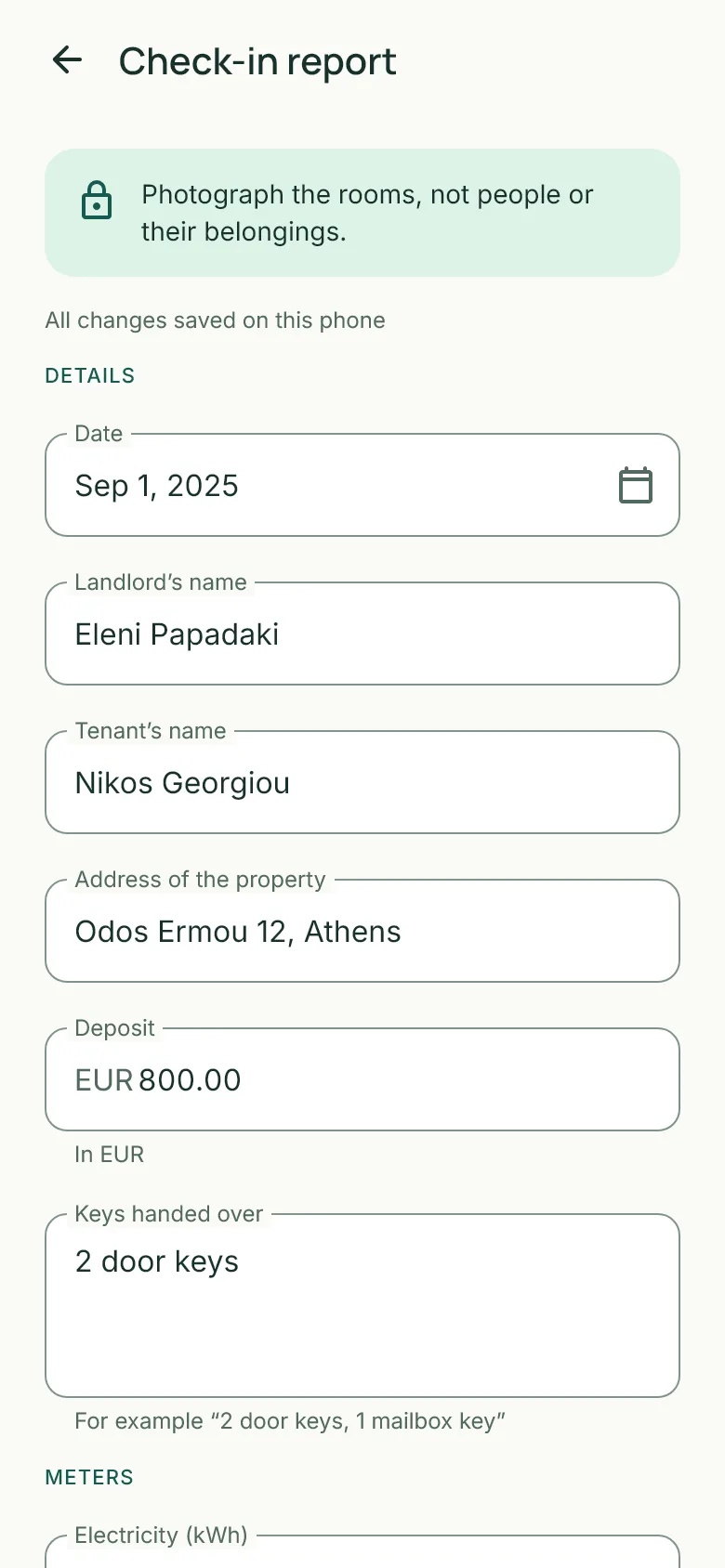
Check the Date
It starts as today. Tap it to pick another day; it cannot be in the future.
Fill in the names and the address
Landlord's name, Tenant's name and Address of the property. A new check-in copies the landlord and address from this home's last report.
Add the Deposit and the Keys handed over
The deposit is in the home's currency. For the keys write what is handed over, for example "2 door keys, 1 mailbox key".
Result: the first part of the PDF is ready. Empty fields print as "Not given".
3. Meter readings
Type each reading under Meters
Each meter of the home has a field such as "Electricity (kWh)". No meters yet? Tap Add a meter, save it, and you are back in the report.
Add a photo of the meter
The field says "Type the reading to add a photo of the meter". Once the reading is in, add one photo that shows the number clearly.
Result: the readings are kept with the report's date, and they also appear under the meter in Meters, marked "For a handover report".
4. Rooms, condition and photos
Rate each room under Condition
Tap Good, Fair or Damaged. Tap it again to clear it.
Write what you see
In the room's notes ("Notes on Kitchen"): a chipped tile, a stain on the sofa, a tap that drips, the oven works.
Add photos
Tap Add photo, then Take a photo or Choose from library. Take as many as the room needs, closer for any damage.
Add what is missing
Add a room or area for a balcony or a storeroom. Under Other photos photograph the keys and the entrance; Notes is for the whole report.
Result: every room has a rating, notes and photos. Each room can be moved up or down, or removed from this report.
As the report itself reminds you: photograph the rooms, not people or their belongings.
5. Both signatures
By Landlord, tap Sign
A sheet opens: Landlord's signature. Sign above the line with your finger and tap Save signature.
Hand over the phone; the tenant does the same
By Tenant, Sign, then Save signature.
Result: both show "Signed", and the list of reports says "Signed by both".
Sign last. Changing anything in the report afterwards removes both signatures, so a signature always matches what it signed. A drawn signature shows agreement with the report; it is not a certified digital signature.
6. The PDF
Tap Create PDF
You see PDF ready with its number of pages: "It is deleted from the app after a day: share it or save it now."
Tap Share or Save to files
Share sends it with the app you choose, for example email, to the other party. Save to files keeps a copy where you pick.
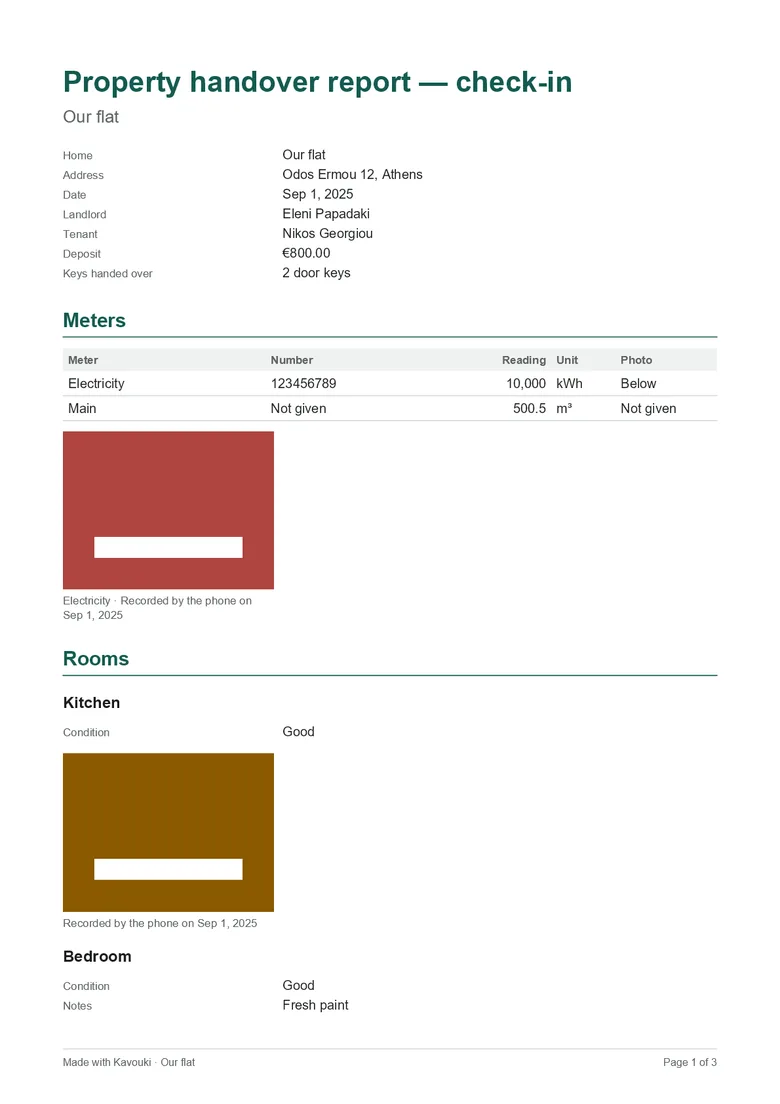
Result: you both have the same PDF: the details, the meters with their photos, every room with its condition, notes and photos ("Recorded by the phone on …"), the landlord's furniture by room if you marked any, both signatures, and a closing note about what the report is.
Evidence, not a contract. The report records the condition of the home on the date shown. It does not replace the lease, and photo dates are the phone's. In Greece, both of you can have the PDF digitally certified at docs.gov.gr (PDF files up to 5 MB), free of charge, signing in with your own gov.gr account.
Where your data goes
The report and its PDF are made on your phone. The PDF leaves it only when you tap Share or Save to files, and goes only where you send it; Kavouki sends nothing. It holds two people's names, an address and photos of the home, so share it with the other party and anyone you both agree on. Kavouki deletes its own copy of the PDF after a day; the report stays in the app until you delete it.
If something goes wrong
- "1 field needs attention": a field shows its problem, such as "Too long", "Enter an amount, for example 800" or "Enter the number on the meter". Fix it; until then that field is not saved.
- "Some changes could not be saved. Try again." or "Could not create the PDF. Check free space and try again.": the phone may be low on space. Free some and try again.
- "A photo could not be added. Try another one." Take the photo again, or choose another.
- The report has no rooms. The home had none when you started. Tap Add a room or area for each one.
- The signatures disappeared. Something in the report changed after signing. Check it, then both sign again.
- You made it in the wrong home. At the bottom, tap Delete report, open the right home and start again.
Questions
Is the report legally binding?
It is evidence of the home's condition on the day, agreed by both signatures; it is not a contract and does not replace the lease. In Greece you can both have the PDF digitally certified at docs.gov.gr.
Does the other person need Kavouki?
No. They sign on your phone and receive the PDF like any other file.
Who should make the report, the tenant or the landlord?
Either. What matters is that you walk the home together and both sign the same report.
Is it really free?
Yes: the check-in, the check-out and their PDFs are free. Only the side-by-side comparison of a check-out with its check-in will be part of Kavouki Plus, which is not on sale yet.
Still stuck? Write to support@kavouki.com with the message you see, your phone model and the Kavouki version (Settings › About). Please do not send the report or its PDF: it holds other people's details.