Guide · Renting and letting
Make the move-out report and compare it
At the end you have a signed check-out report, paired with the check-in from moving-in day, as a PDF for both of you. Two dated records of the same rooms make it easier to agree on what changed.
Before you start
- The move-in report for this home in Kavouki (see Make a move-in handover report). Without one you can still make the check-out; it just is not paired.
- Both of you in the home, the meters within reach and the keys being returned.
In this guide
1. Start the check-out
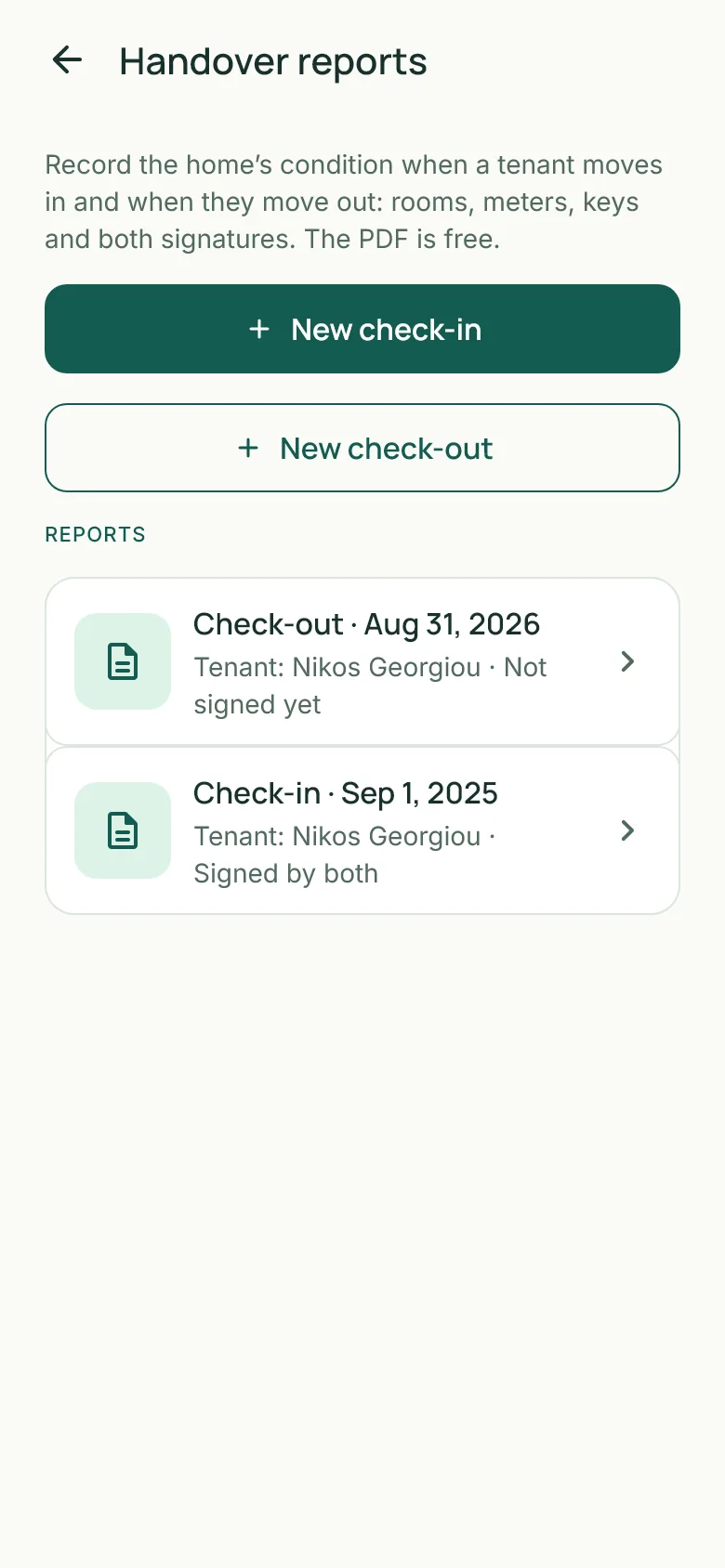
Open Settings › Reports & tools › Handover reports
Make sure the rented home is the one open in Kavouki: its reports are listed under the two buttons.
Tap New check-out
The Check-out report opens, dated today, with one room for each room of the home. It copies the names, address, deposit and keys from the check-in it pairs with.
Result: a check-out with the details already filled in. Change only what changed, for example the keys that were returned.
2. Check which check-in it pairs with
Look under Check-in it pairs with
It shows "Check-in of" and a date: the newest check-in of this home held on or before the check-out.
To change it, tap the row
Which check-in? lists this home's check-ins; pick one, or Not paired. If there is none: "There is no earlier check-in of this home. You can still finish this check-out."
Result: the check-out knows which day it is compared with.
3. Walk the rooms again
Type today's readings under Meters
Add a photo of each meter once its reading is in.
Rate each room under Condition
Good, Fair or Damaged, as it is today, not as it was.
Note and photograph what changed
Write anything new in the room's notes and add photos, close up where there is wear or damage. Other photos is for the returned keys.
Result: a full record of the home on the day it is handed back.
4. Sign and create the PDF
Both sign
By Landlord and by Tenant: Sign, a finger signature above the line, Save signature.
Tap Create PDF, then Share or Save to files
The PDF is titled "Property handover report — check-out". Kavouki keeps it for a day, so share or save it now.
Result: you both have the signed check-out as a PDF, next to the check-in PDF from moving-in day.
Finish everything before you sign. Changing anything in the report afterwards removes both signatures, so a signature always matches what it signed; create the PDF after signing.
5. The comparison Kavouki Plus
Kavouki Plus is not on sale yet, so Kavouki does not show this tool until it is.
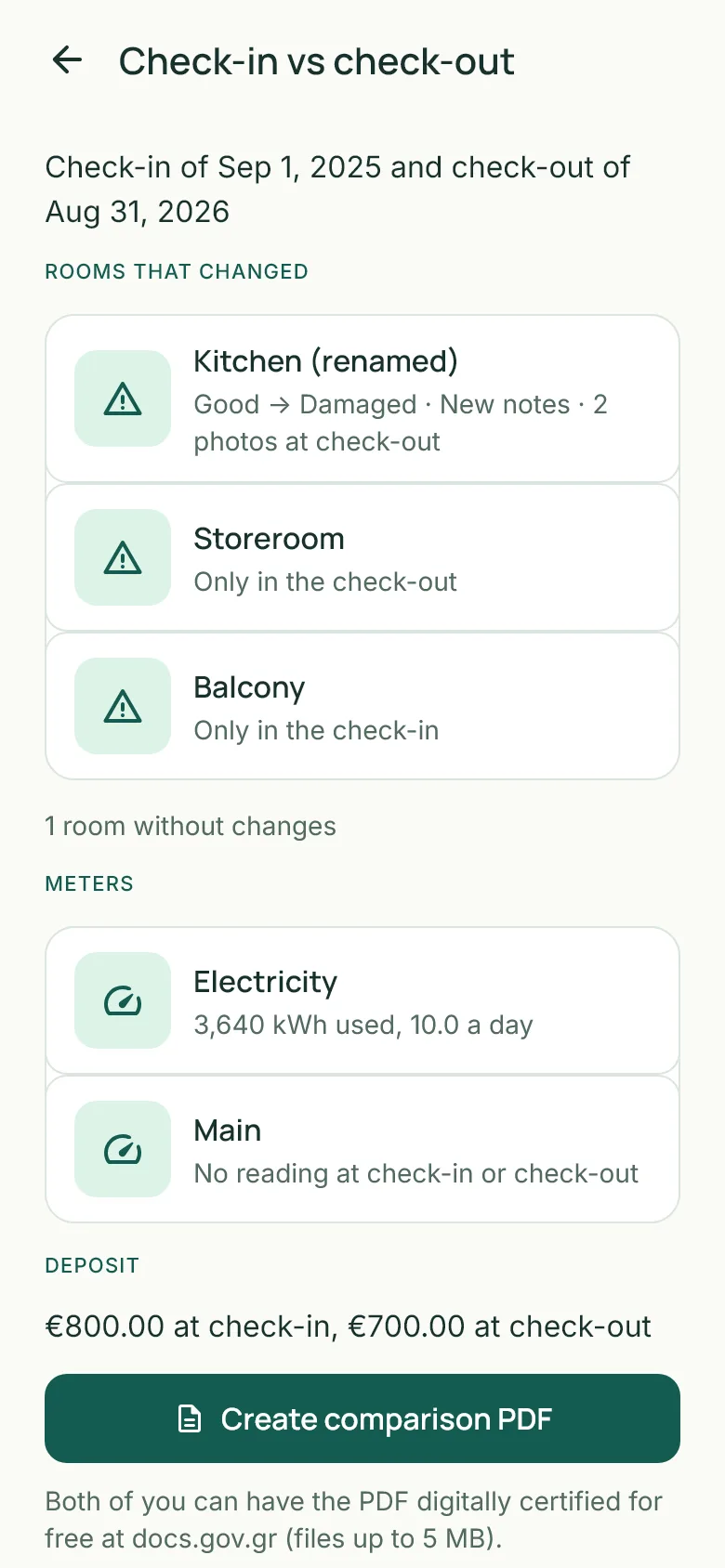
Comparing a check-out with its check-in, and its PDF, will be part of Kavouki Plus. When it is on sale, the Compare with check-in row on a paired check-out opens Check-in vs check-out with:
- the rooms that changed: a new rating ("Good → Damaged"), new notes, photos taken at check-out, rooms that are only in one report;
- how many rooms have no changes;
- what each meter used between the two readings, such as "3,640 kWh used, 10.0 a day", with a missing or lower reading flagged;
- the deposit at check-in and at check-out, and Create comparison PDF with each room side by side.
Until then, both reports and their PDFs are free: put the two PDFs side by side, and see what each meter used between readings in Meters. Reports you make now can be compared later; nothing needs redoing.
Where your data goes
Both reports and their PDFs are made on your phone. A PDF leaves it only when you tap Share or Save to files, and goes only where you send it; Kavouki sends nothing. It holds names, an address and photos of the home, so share it with the other party and anyone you both agree on.
If something goes wrong
- It paired with the wrong check-in. Tap the row under Check-in it pairs with and choose the right one.
- "There is no earlier check-in of this home." The check-in was made in another home, or not at all. You can still finish and sign this check-out.
- The signatures disappeared. Something changed after signing. Check the report and both sign again, then create the PDF.
- "Could not create the PDF. Check free space and try again." Free some space on the phone and tap Create PDF again.
Questions
Do I need a check-in to make a check-out?
No. Without one, the check-out is simply not paired. It is a complete, signed report on its own.
Does Kavouki work out what to keep from the deposit?
No. It records the deposit and the condition of the home on both days. What happens to the deposit is for you to agree, under your lease and the law.
When will the comparison be available?
When Kavouki Plus goes on sale, as a one-time purchase. Until then the reports, the PDFs and the meter readings stay free, and they always will. See Free and Kavouki Plus.
Still stuck? Write to support@kavouki.com with the message you see, your phone model and the Kavouki version (Settings › About). Please do not send the reports: they hold other people's details.