Guide · Your car
Add your car and its service intervals
At the end your vehicle has its own place in Kavouki: its details, today's km and its services, with the next one worked out by date or by km, whichever comes first. The whole car section is free.
Before you start
- The plate, the year and the fuel; the registration certificate if you want the first registration date.
- The km on the dashboard today.
- The receipts of the last services, for their date and km.
In this guide
1. Add the vehicle
On the Home tab, tap your home's name at the top
The Your homes sheet opens, with your homes and, under them, Add a vehicle.
Tap Add a vehicle and pick its Type
Car, Motorbike, Van, Boat or Other. The type decides which services Kavouki suggests.
Fill in the name and tap Add vehicle
A Name such as "My car" is required; Make, Model, Plate and Year are optional.
Result: the vehicle's screen opens. The vehicle is now its own home in Your homes, free: switch to it and tap its card under Your vehicles to come back here.
2. Its details
Tap the pencil at the top
Vehicle details opens: Type, Plate, Year, Fuel, First registration and VIN (chassis number).
Choose the Fuel
Petrol, Diesel, Hybrid, Plug-in hybrid, Electric, LPG, CNG or Other. It decides whether fill-ups are in litres, kWh or kg.
Add the First registration and tap Save
"The first ΚΤΕΟ is four years after it, then every two": Kavouki shows the next ΚΤΕΟ under Coming up until you log one. The VIN is optional, typed by you and never looked up.
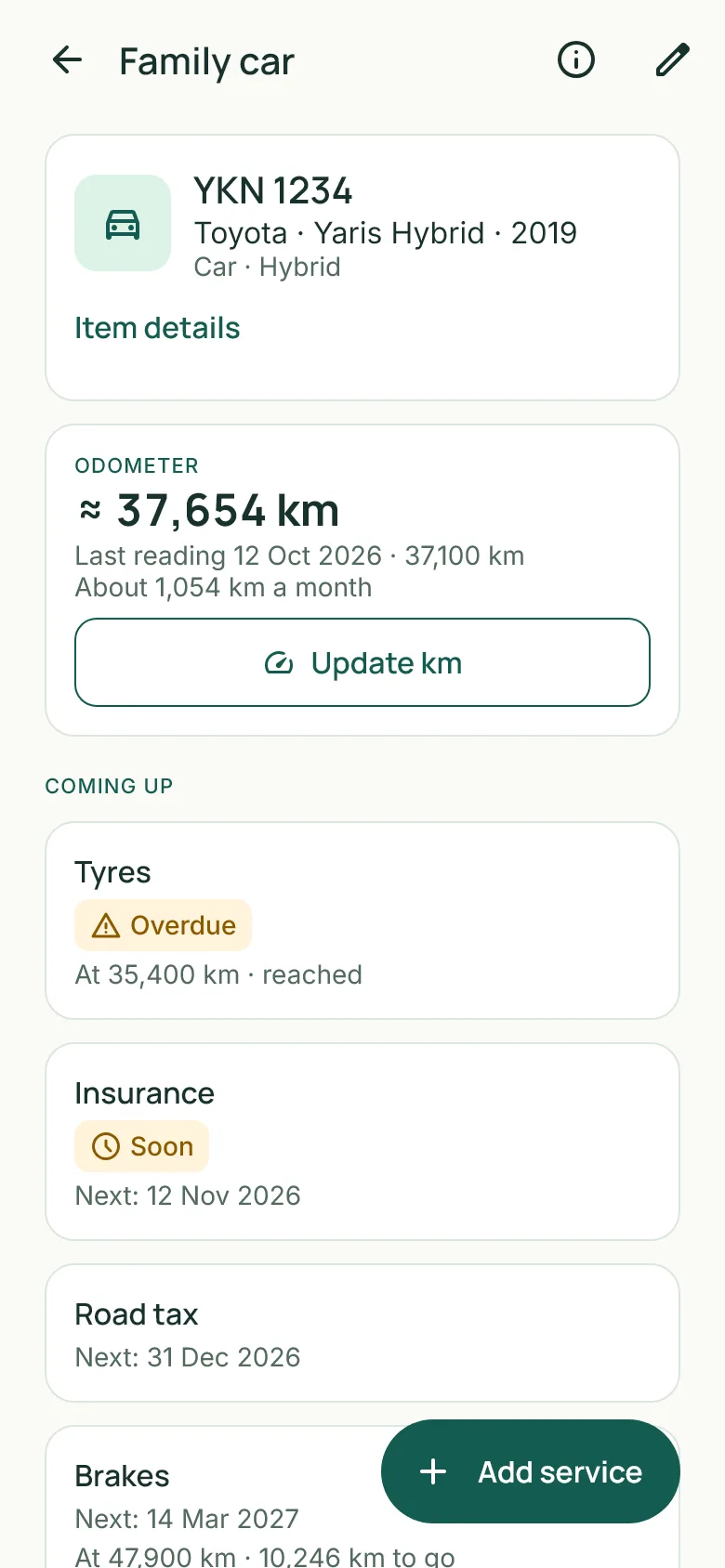
Result: the top card shows the plate, make, model, year, type and fuel.
3. Today's km
Under Odometer, tap Update km
A sheet opens with Odometer (km) and Read on (the date, today or earlier).
Type the km and tap Save
Do it again now and then. Every service and every fill-up with km counts as a reading too.
Result: the card shows your km. Once readings are at least 14 days and 100 km apart, it estimates today's km ("≈ 37,654 km") and your km a month, and uses them to time services due by km.
4. Log a service and its interval
Tap Add service
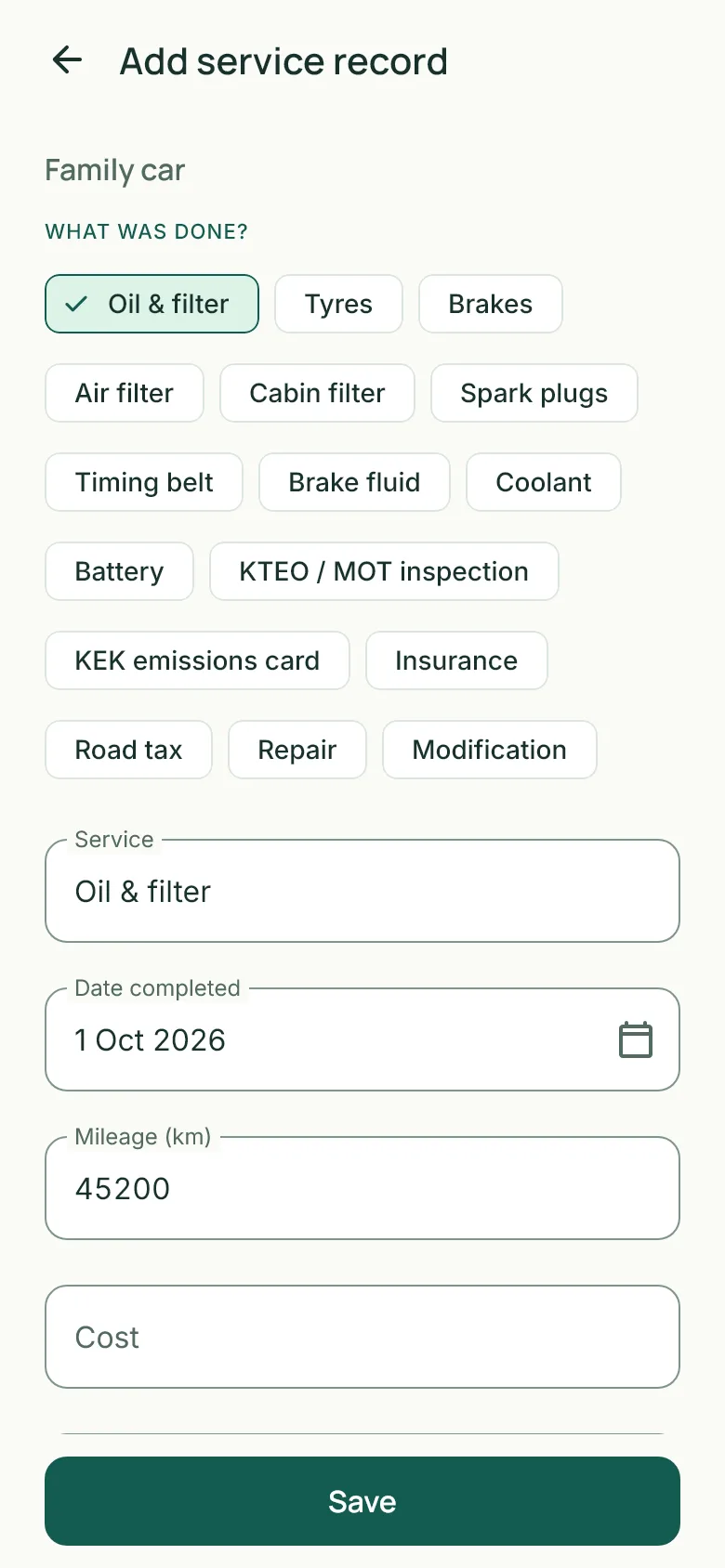
Add service record opens with the vehicle's name and What was done?
Tap what was done, for example Oil & filter
It fills the Service name and turns on Repeat service with a starting interval: for a car's oil and filter, every 12 months or 15,000 km.
Fill in Date completed and Mileage (km)
The km it was done at is needed to repeat by km. Cost, Technician / company and Notes are optional.
Check Every (months) and or every (km)
The line below shows the next turn, such as "Next: 1 Oct 2027 or 60,200 km, whichever comes first". The intervals are a starting point; check your vehicle's manual.
Tap Save
The first time, Kavouki offers to notify you on the day: tap Allow notifications or Not now.
Result: the service is in the history, and its next turn is under Coming up with a reminder.
5. What is coming up
- One card per repeating service under Coming up: "Next: 28 Mar 2027", or "Next: ≈ 28 Mar 2027, from your km" when the km decide, and "At 45,000 km · 7,550 km to go".
- Whichever comes first: the date the months run out, or the day your km per day reaches the km. Each time you update the km, the date moves.
- Soon means within 30 days or 1,000 km; Overdue means the date has passed or the km are reached.
- Done it? Tap the card: the form opens with the same service and intervals and today's date. Add the km and save; the new record takes over the reminder.
ΚΤΕΟ / MOT, the ΚΕΚ emissions card, insurance and road tax are chips in the same list. How they are timed is in ΚΤΕΟ, ΚΕΚ and road tax reminders.
Where your data goes
The plate, the VIN and every service stay in Kavouki on this phone. Nothing is looked up online, and reminders are scheduled by the phone itself.
If something goes wrong
- "Add the km it was done at to repeat by km." Fill in Mileage (km), or leave or every (km) empty.
- "Enter months, km or both." Repeat service is on without an interval. Fill one in, or turn repeat off.
- "Lower than 37,100 km on 12 Oct 2026." A km reading must fit between the ones before and after it. Check the number and the date.
- "At 45,000 km · update the km to see when": Kavouki needs readings at least 14 days and 100 km apart to time it. Tap Update km again in a couple of weeks.
- Reminders do not arrive. See Reminders and notifications; they always show in the To do tab.
Questions
Is the car section free?
Yes: vehicles, services, reminders, km, the fuel log and the Fuelio import are free. Only the service book PDF for selling the car will be part of Kavouki Plus, which is not on sale yet.
Can I add more than one vehicle?
Yes. Each one is added the same way and gets its own place in Your homes.
What about a motorbike?
Choose Motorbike as the type. Its suggestions include oil every 6,000 km or 12 months, the chain, valve clearance and fork oil.
Does Kavouki know my official ΚΤΕΟ date?
No. It works the date out from the first registration and from what you log. Check the official date with your testing centre or on gov.gr.
Still stuck? Write to support@kavouki.com with the message you see, your phone model and the Kavouki version (Settings › About).