Guide · Warranties, reminders and home care
Reminders that reach you, even with notifications off
The To do tab always shows what is due, whatever your phone allows. Allow notifications and keep battery savers away from Kavouki, and each reminder also arrives on the day.
Before you start
- At least one reminder in Kavouki: a warranty, a service with Repeat service on, or one of your own.
- No internet needed. Your phone schedules the reminders itself.
In this guide
1. To do: the list that always works
Tap To do
It is the third tab at the bottom, and shows a number when something is overdue. Tasks are grouped as Overdue, This week, Upcoming, No date and History; a group with nothing in it is left out.
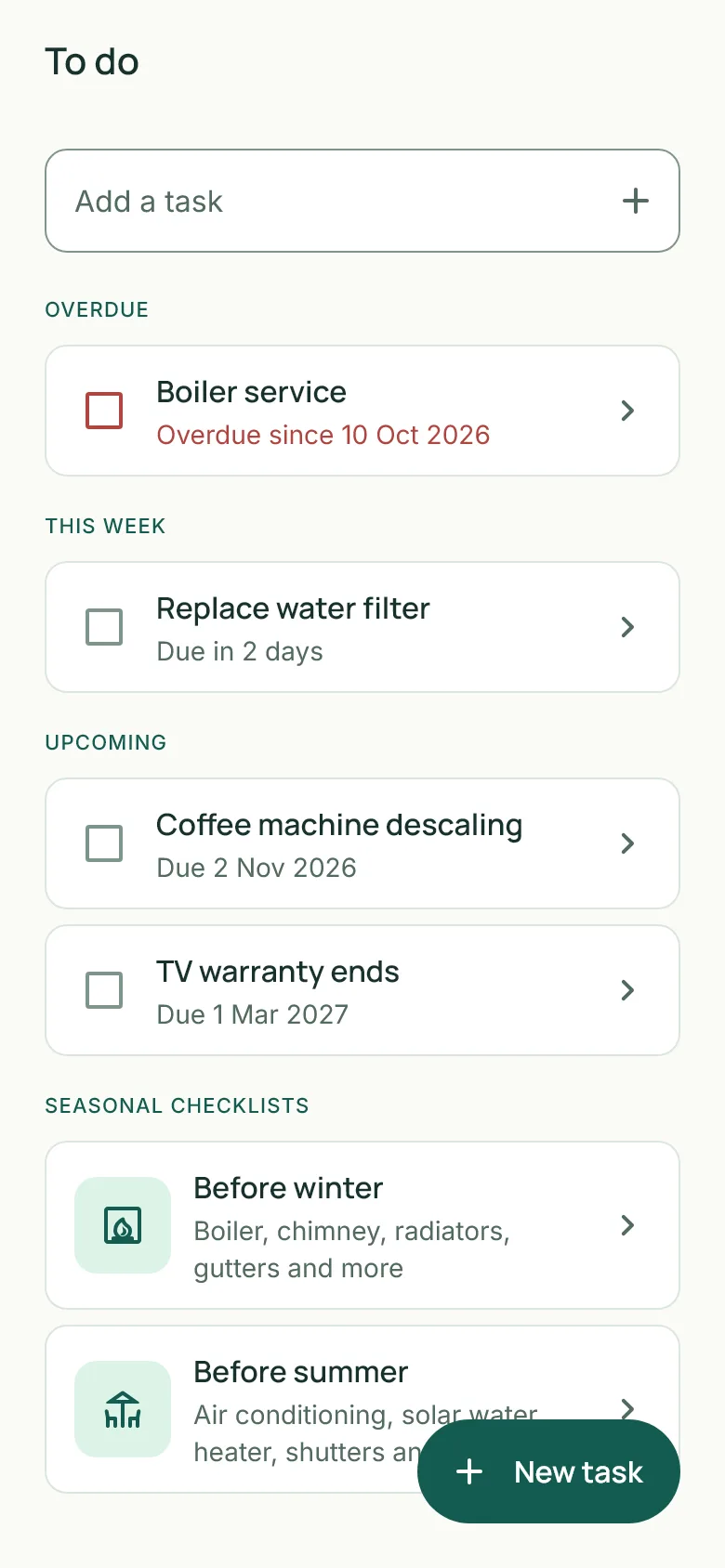
Tap a reminder
It opens with its date, the item it belongs to and when it reminds you, under Reminds you.
Jot down a quick task
Type it in Add a task at the top, for example “Change the bathroom bulb”, and tap + or the keyboard's Done. It goes under No date and the field is ready for the next one. A task without a date is never overdue, does not count on the tab, and sends no notification.
Add one with a date
Tap New task and give it a Title. Under When, On a date is chosen: pick the Due date, when under Remind me (on the day, 1 day, 1 week or 30 days before), whether it repeats, and the item if you like. Tap Save task.
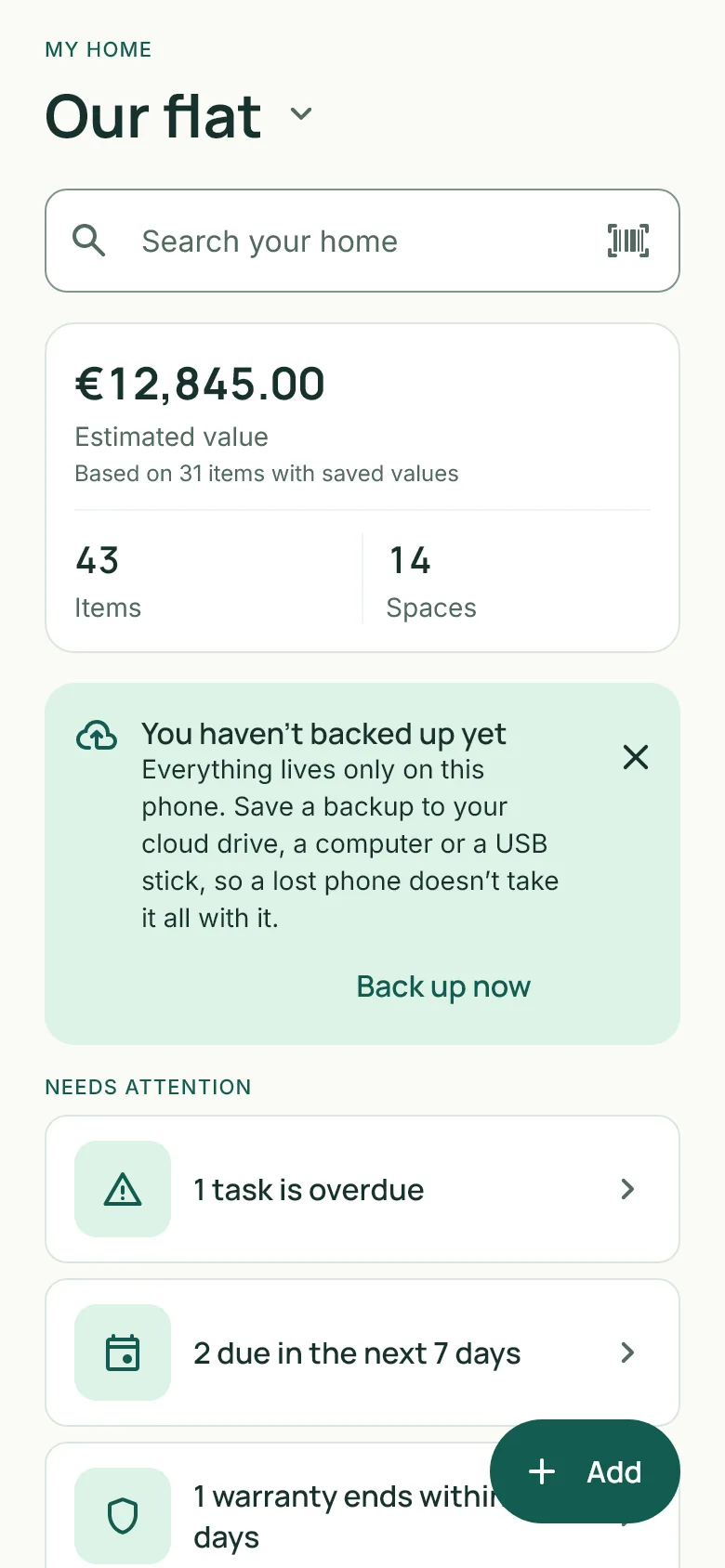
Result: warranties, services, car papers and your own tasks are all in one list on the phone. The Home tab also counts the dated ones under Needs attention.
2. Allow notifications
Say yes when Kavouki asks
The first time you save something with a reminder, Kavouki explains first (“Get told when it’s due”) and offers Allow notifications or Not now. Then the phone asks too. On older Android versions notifications are on from the start and nothing is asked.
Said no? Open Settings › Notifications
It says Notifications are off. Tap Allow notifications, or Open system settings if the phone no longer asks, and turn them on for Kavouki. The banner at the top of To do has a Turn on button that does the same.
Check the time
Reminders come at 09:00 unless you give one a time of its own with Time (optional).
Result: Settings › Notifications says Notifications are on, and each reminder arrives on its day as well as in To do.
On Android, the lock screen shows only “Reminder due”. The item's name appears after you unlock, so a glance at your phone does not reveal what you own.
3. Battery savers on Android
Some phones stop apps in the background to save battery, and that can delay or drop a notification. If reminders do not arrive, let Kavouki run. The names differ by phone maker and Android version, so look for something close to these:
- Most Android phones: Settings › Apps › Kavouki › Battery, then Unrestricted or Don't optimise.
- Samsung: Settings › Battery › Background usage limits, and make sure Kavouki is not in Sleeping apps or Deep sleeping apps.
- Xiaomi, Redmi, POCO: in Kavouki's app settings, turn on Autostart and set the battery saver to No restrictions.
- Huawei, Honor: Settings › Battery › App launch, set Kavouki to manage manually and allow it to run in the background.
- OnePlus, OPPO, realme: in Kavouki's battery settings, allow background activity.
On iPhone there is nothing to change for battery. If notifications do not show, check Settings › Notifications › Kavouki, and that a Focus is not holding them back.
Result: the phone leaves Kavouki's reminders alone, also after a restart.
4. Snooze or mark done
Open the reminder
Tap the notification, or tap the reminder in To do. Its page opens.
Not today? Snooze it
Tap Snooze 1 day or Snooze 1 week. To do shows “Snoozed until” and the date, and you are reminded once more on that day. A task without a date has nothing to snooze.
Done? Mark it
Tap Mark done, or tick the box in front of the task in To do. It moves to History. If it is one of your own reminders that repeats, the next one appears at once. Ticked by mistake? Untick it in History.
Result: To do holds only what is still open. Edit and Delete are on the same page.
For a service that repeats, such as the boiler or the car's ΚΤΕΟ, log the new service with Add service instead. That sets the next date. Mark done only closes this reminder, so no next one would come.
5. Seasonal checklists
Before the heating goes on and before the heat, a home needs the same jobs every year. To do has them ready under Seasonal checklists.
Tap Before winter or Before summer
Before winter lists the boiler, the chimney, bleeding the radiators, the roof and gutters, the window seals and the smoke alarm. Before summer lists the A/C filters and service, the solar water heater, shutters and awnings, mosquito screens and garden watering. All are ticked: untick what your home does not need.
Choose the dates
Under Dates, Every year makes the tasks due on 1 October or 1 May, every year, and says when the first one is; if that date passed less than two months ago, they are due today. No dates adds them to tick off when they are done, with no notification.
Tap Add 6 tasks
The button counts the tasks you left ticked. A task with the same name that is still open is not added twice.
Result: the season's jobs are in To do. With dates, each reminds you on its day only, so they do not arrive as a burst of early notices.
If something goes wrong
- The reminder is in To do but no notification came. Notifications are off for Kavouki, a battery saver stopped it, or a Focus held it back. Go through parts 2 and 3.
- It arrived a little after 09:00. To save battery, Android may deliver a reminder within a few minutes of its time. That is expected.
- Allow notifications does nothing. The phone has stopped asking after a “no”. Use Open system settings instead.
- Reminders seem wrong after a restore or a trip abroad. Open Kavouki once: it plans the reminders again when it starts and when the time zone changes.
Questions
Do reminders need the internet?
No. Your phone schedules them itself, so they work offline. They always appear in To do, even when notifications are off.
Can someone see my reminders on the lock screen?
On Android, the lock screen says only “Reminder due”. On iPhone, Settings › Notifications › Show Previews decides what the lock screen shows.
Why do some reminders come early?
Warranties remind you 30, 7 and 1 day before they end, and car papers 14 days before and on the day, so you have time to act. Services remind you on the day.
Does Kavouki send reminders from a server?
No. Kavouki has no server and no account. Notifications are created on your phone and nothing is sent anywhere.
Still stuck? Write to support@kavouki.com with your phone model and Android or iOS version, the Kavouki version in Settings › About, and which reminder did not arrive. Settings › Help & support › Copy diagnostics gives you a short, anonymous list to paste in.