Guide · Your car
Log fill-ups and read your fuel consumption
At the end every fill-up is in your vehicle's fuel log, Kavouki shows what the car uses and costs per km, and, on Android, a widget keeps today's km and the next service on your home screen.
Before you start
- The vehicle in Kavouki, with its fuel set (see Add your car).
- The receipt or the pump display, and the km on the dashboard.
- Fill-ups in another app? Bring your Fuelio history first.
In this guide
1. Add a fill-up
Open the vehicle and, under Fuel, tap Add fill-up
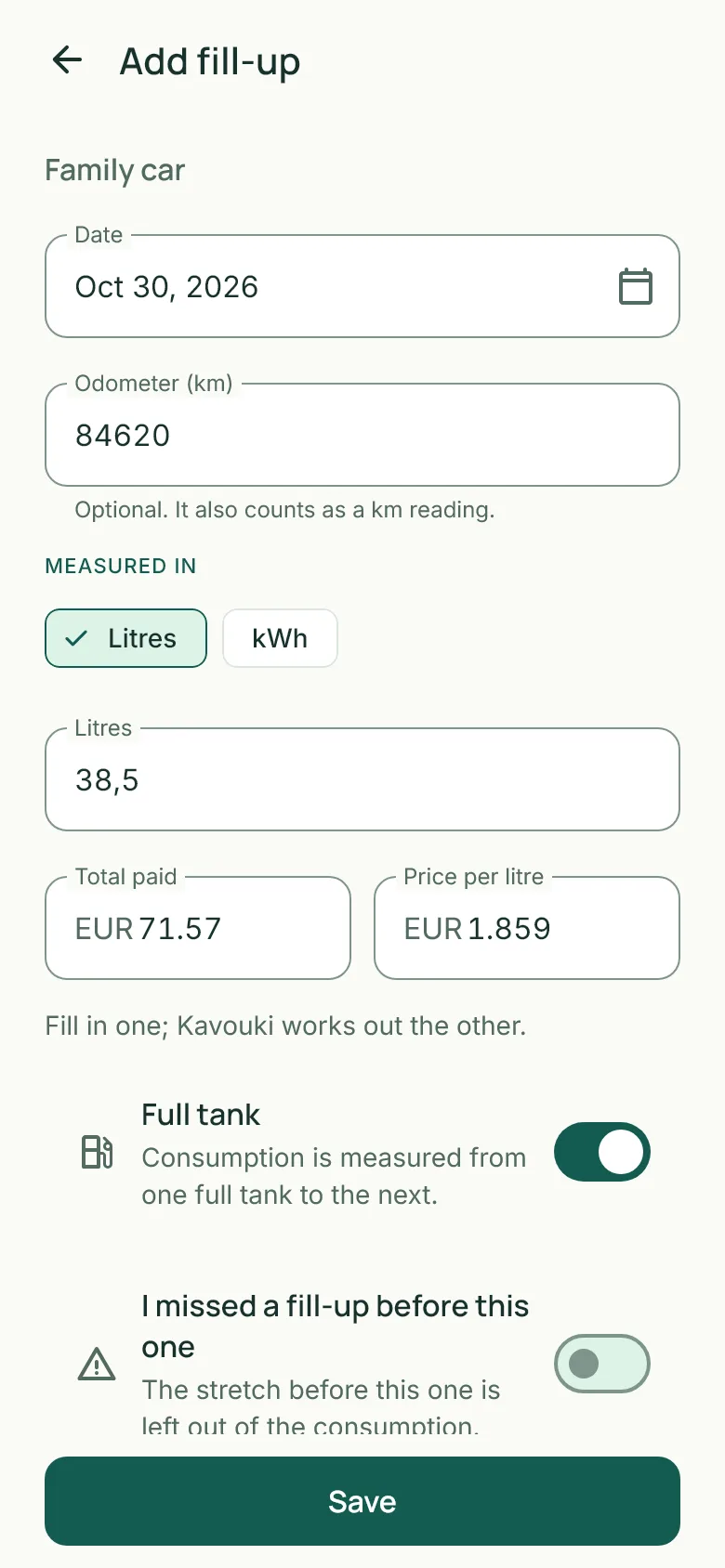
Add fill-up opens with the vehicle's name and today's Date.
Type the Odometer (km)
It is optional, but "It also counts as a km reading", and consumption needs it.
Type the Litres
An electric car asks for kWh charged, a CNG car for Kilograms. A plug-in hybrid first shows Measured in: pick litres or kWh.
Fill in Total paid or Price per litre
"Fill in one; Kavouki works out the other."
Check the two switches and tap Save
Leave Full tank on if you filled up (Charged to full for a charge). Turn on I missed a fill-up before this one if you forgot to log the last one. Station and Notes are optional.
Result: the fill-up is at the top of Fuel. Its km update the odometer and move any service that is due by km.
2. Read your consumption and costs
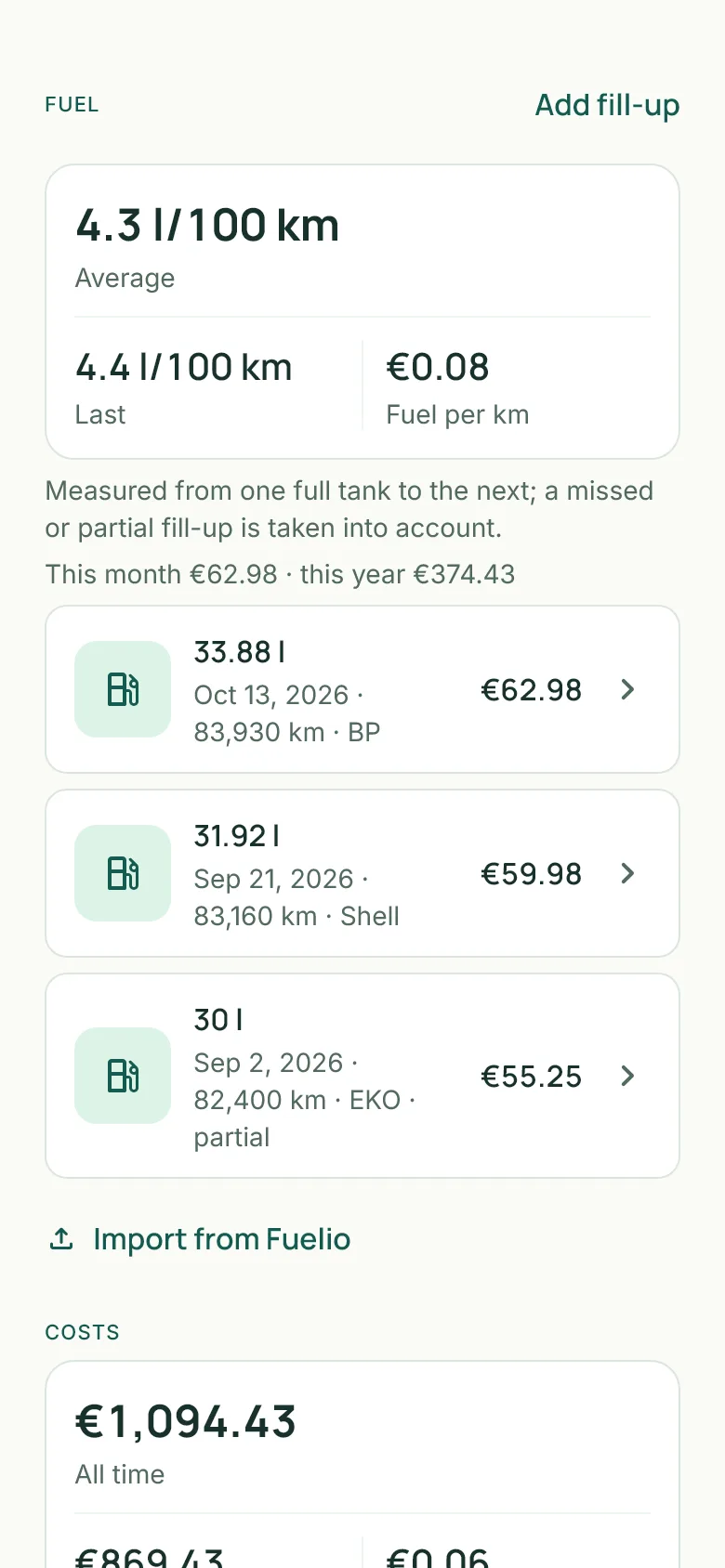
- Full tank to full tank: consumption is measured from one full tank to the next, with any partial fills in between added in. "Consumption shows from the second full tank."
- Last and Average: the latest measured stretch, and everything measured so far, in l/100 km (kWh/100 km or kg/100 km for other fuels).
- Fuel per km: what the measured stretches cost, per km. It counts stretches whose fill-ups all have a total.
- Spend: "This month €62.98 · this year €374.43".
- A gap starts over: a missed fill-up, or one without km, starts a new stretch, so one gap does not spoil the average.
Further down, Costs adds services and fuel together: this year, all time and per km, "From what is logged here".
Tip: fill to full when you can and always type the km. Consumption is only as exact as the fill-ups behind it.
3. Correct or delete a fill-up
Tap the fill-up
Under Fuel, or under History › Fuel for older ones. The Fill-up form opens.
Change it and tap Save, or tap Delete fill-up
Deleting asks first: "It goes from the fuel log and from the km."
Result: consumption, costs and km are worked out again.
4. The home-screen widget Android only
Touch and hold an empty spot on your home screen, then tap Widgets
The words differ a little between phone makers.
Find Kavouki and drag Kavouki car onto the screen
"Your car's km today and its next service." You can resize it.
Read it at a glance; tap it to open the vehicle
It shows the vehicle's name, today's km ("≈ 37,328 km" when estimated) and the next service, such as "Oil & filter · in 1,200 km", "Insurance · 12 Mar 2027", "Road tax · overdue" or "Nothing due".
Result: your car's km and its next service, without opening the app. It updates when you change something in Kavouki and every few hours.
The widget shows a vehicle of the home that is open in Kavouki; with several, the one whose service is due soonest. If your car is its own home, open it once in Your homes. With app lock on, the widget shows only "Kavouki" and "Open to see your car". There is no iPhone widget yet.
Where your data goes
Fill-ups, km and costs stay in Kavouki on this phone. The widget is drawn on the phone from the same data; nothing is sent anywhere, and Kavouki looks up no fuel prices.
If something goes wrong
- "Lower than 36,100 km on 1 Oct 2026." A fill-up's km must fit between the readings before and after it. Check the number and the date.
- "Enter how much, like 38.5.", "Enter an amount, like 62.50." or "Enter a price, like 1.859.": type digits with one decimal mark, a comma or a dot.
- No consumption shows. It needs two full tanks with km. Keep Full tank on when you fill up.
- The widget says "Add a vehicle in Kavouki to see its km here." The home open in Kavouki has no vehicle. Open the car's home in Your homes.
- The widget says "No km yet". Add a fill-up with km, or tap Update km on the vehicle.
Questions
Does it work for an electric car or a plug-in hybrid?
Yes. Charges are logged in kWh with Charged to full; a plug-in hybrid picks litres or kWh for each entry, and each unit is measured on its own.
Is there a widget for iPhone?
Not yet. The widget is Android only; on iPhone the same km and next service are on the vehicle's screen.
Is the fuel log free?
Yes: fill-ups, consumption, costs, the Fuelio import and the widget are free, with no limit.
Still stuck? Write to support@kavouki.com with the message you see, your phone model and the Kavouki version (Settings › About).