Guide · Getting started
Start your home inventory with one room
At the end you will have one room in Kavouki with everything in it listed, most things with a photo. One finished room shows you how the app works, and it is already useful the day something goes missing.
Before you start
- Kavouki on your phone. You need no account and no internet.
- One room to begin with. A small one works best: the kitchen, the home office or the garage.
- About ten minutes. You can stop at any point: everything is saved as you go.
In this guide
1. Create your home and its rooms
If Kavouki already shows your home, go to part 2.
Open Kavouki and tap Get started
The welcome slides show what Kavouki does; the button is under every slide. You see Create your home.
Name your home and tap Continue
Type a name under Home name, for example "Our flat". Check the Currency: Kavouki uses it for prices and the value estimate. You see Which rooms do you have?
Tick your rooms and tap Add 3 rooms
Pick from Living room, Kitchen, Bedroom, Bathroom, Dining room, Home office, Garage and Storage room, or tap Add your own. The button counts the rooms you ticked. You can add more later.
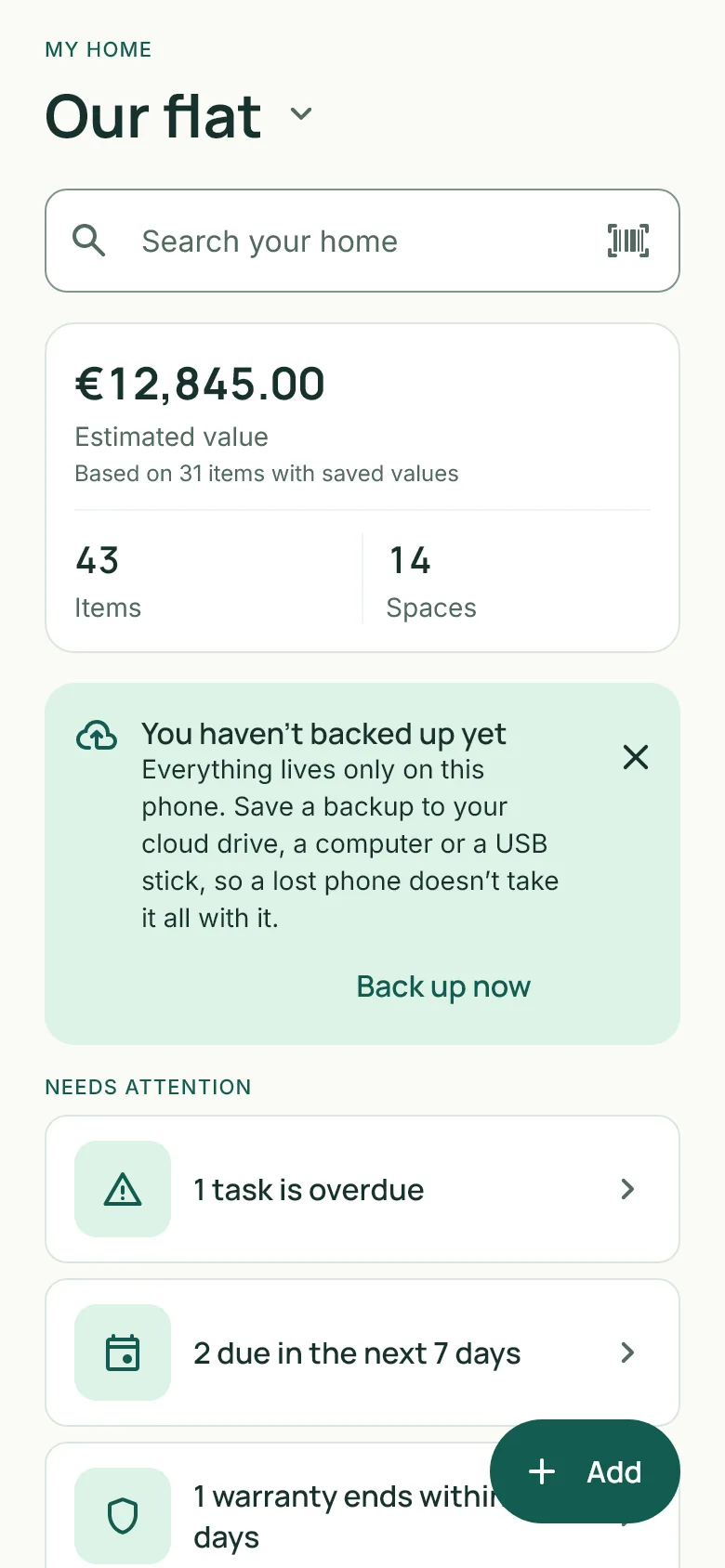
Result: your home's dashboard opens, with your rooms as cards under Your spaces.
2. Open the room you start with
Tap the room under Your spaces
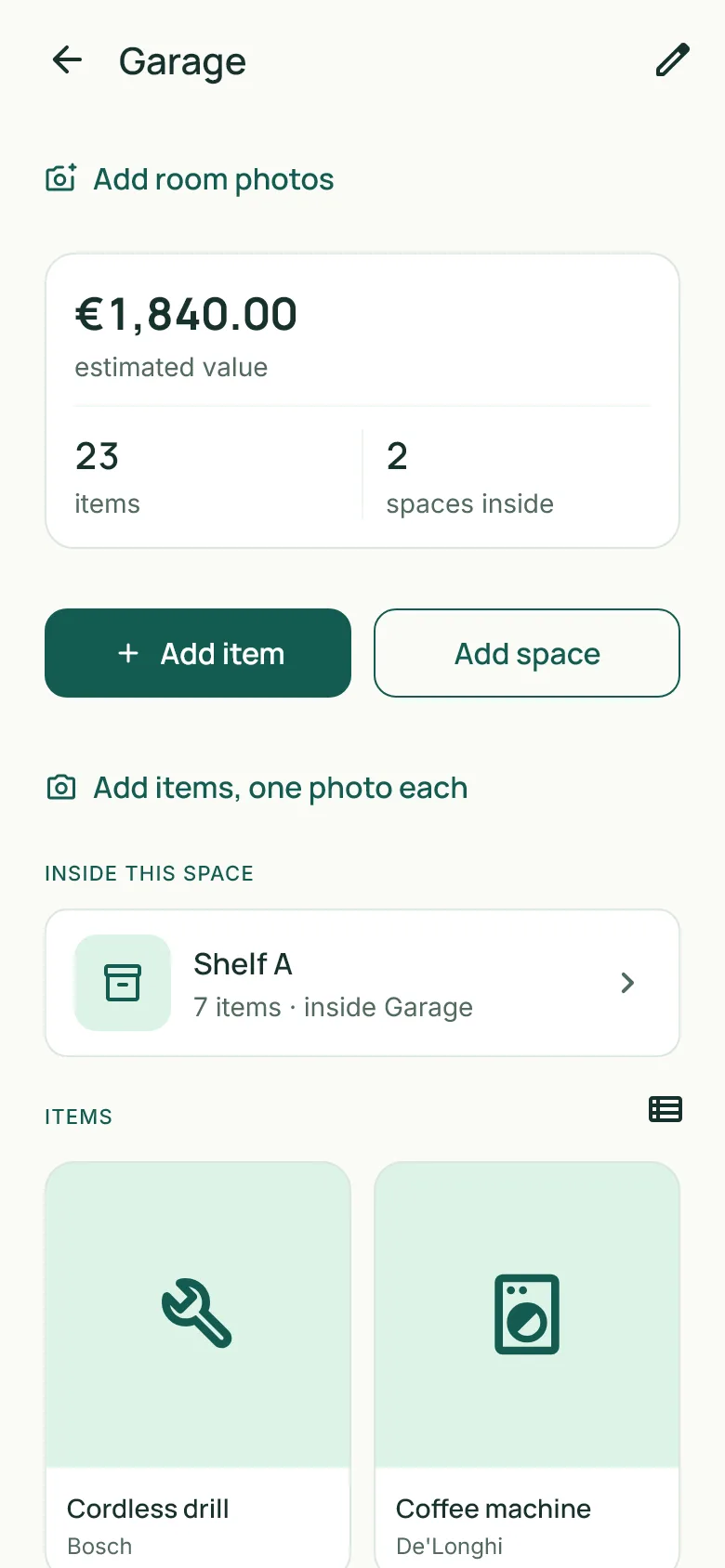
Or open the Spaces tab and tap it there. The room's page opens with Add room photos at the top, for photos of the room itself, and three buttons: Add item, Add space and Add items, one photo each.
No room yet? On the Spaces tab tap Add space, type the room's name, leave Type on Room and tap Save.
3. Add what is in it
Add things one at a time with a name, or many in a row with the camera. Both are free and have no limit.
Tap Add item
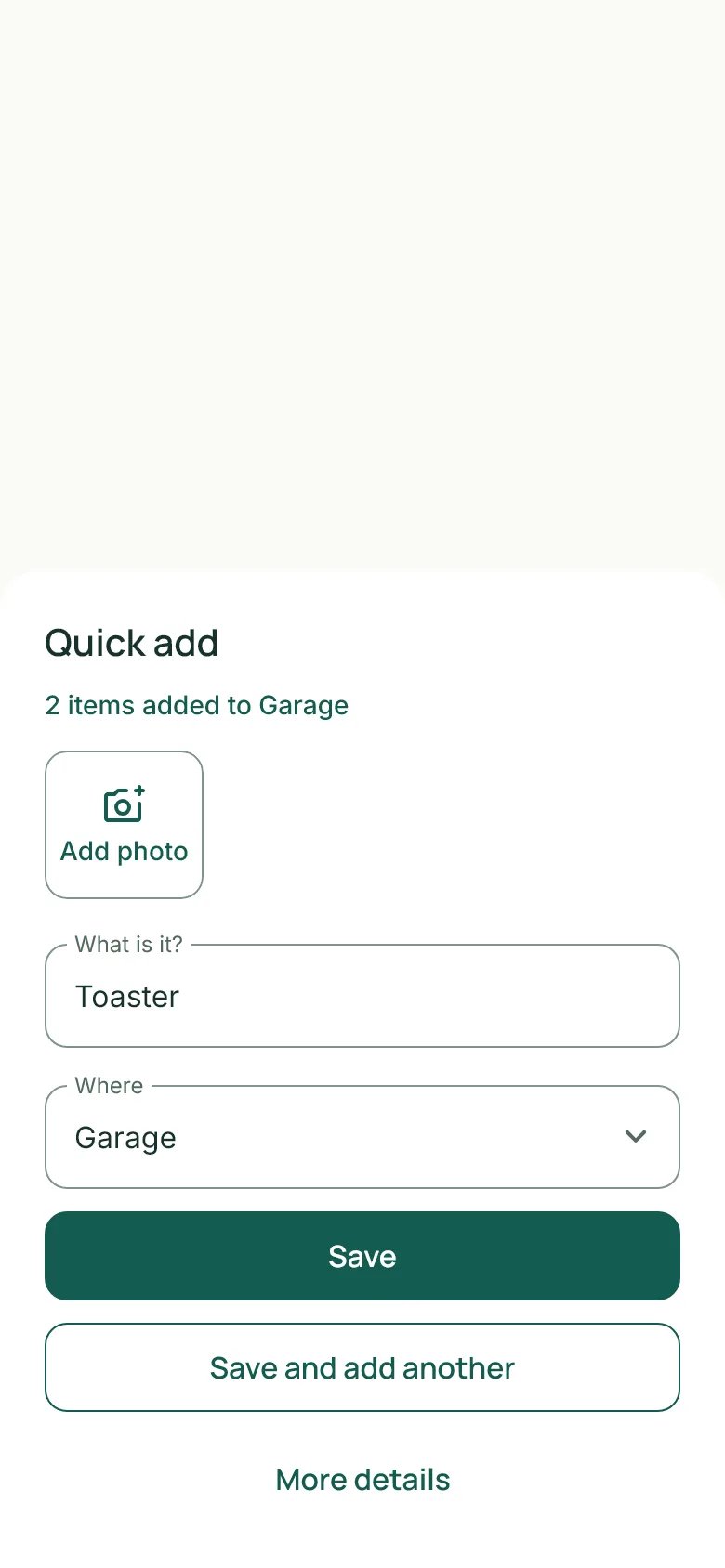
The Quick add sheet opens, with the room already chosen under Where.
Type what it is
Write the name under What is it?. If you like, tap Add photo to take a photo or choose one you already have. A name is enough.
Tap Save and add another
The item is saved and the sheet stays open for the next one, counting as you go: "2 items added to Garage". For the last one tap Save, which closes the sheet.
Result: the room's page lists everything you added, and the dashboard counts it.
Faster with the camera: tap Add items, one photo each instead. The camera stays open and every photo becomes an item in this room. See Add items, one photo each.
4. Add cupboards, shelves and boxes
A room can hold smaller spaces, so you know which cupboard, shelf or box a thing is in.
In the room, tap Add space
The Add space form opens, with the room already chosen under Inside.
Name it, choose its type and tap Save
Type a Name such as "Shelf A", then under Type pick Storage (a cupboard, a shelf) or Box.
Result: it appears under Inside this space on the room's page. Open it and add things to it the same way.
5. Add the details later
Open any item to fill in what matters for that thing. Nothing is required except the name.
- Purchase details: tap Add details (or Edit in the item's menu) for the brand, model, serial number, purchase date and price. Prices add up to the estimated value on the dashboard.
- Receipts and manuals: in the item's form, under Documents, tap Add document.
- Warranty: tap Add warranty for the end date and a reminder before it runs out. See Add a warranty.
Every photo is re-saved when you add it, which removes the location where it was taken.
Where your data goes
Everything you add stays in Kavouki on this phone; Kavouki sends nothing anywhere. That also means a lost phone takes it with it, so export a backup once your first room is done.
If something goes wrong
- The camera does not open. Kavouki asks for the camera the first time you use it. If you said no, allow the camera for Kavouki in your phone's settings, or choose a photo you already have.
- "Saved without the photo: it couldn't be added." The item is kept. Open it and add the photo again; if it fails again, try another photo.
- "Couldn't save. Try again." Your phone may be out of space. Free some space and tap Save again: what you typed is still there.
- Something is in the wrong room. Open the item, tap Move next to its location and pick the right space.
Questions
Do I need an account or an internet connection?
No. Kavouki has no accounts and works offline. What you add is stored on this phone.
Is there a limit on items or photos?
No. Items, spaces and photos are free, with no limit on items; each item takes up to 10 photos and 10 documents.
Can I rename or delete a room later?
Yes. Open the room and tap the pencil (Edit space). Deleting a room that has things in it first moves them up one level; nothing else is deleted.
Can I list a holiday house too?
Yes, for free. Tap your home's name at the top of the Home tab, then Add a home. A car, motorbike or boat can be its own home too: see Add your car.
Still stuck? Write to support@kavouki.com with your phone model, the Kavouki version (Settings › About) and what you tapped. Please do not send your backup file or receipts.