Guide · Organising and moving
Label your boxes with QR codes and follow them through a move
Print a label for every box, stick it on, and scan it later to see what is inside. While you move, mark each box packed, moved and unpacked, with the room it goes to.
Kavouki Plus is not on sale yet, so Kavouki does not show these tools until it is. Choosing spaces and scanning a label are free; creating the label PDF and marking boxes in moving mode need Plus. See Free and Plus.
Before you start
- Your boxes and storage spaces in Kavouki, under Spaces, with their things inside. Start with one room shows how.
- A printer with plain A4 paper, or A4 label sheets of 24 (L7159 size) or 10 (L7173 size).
In this guide
1. Choose the spaces
Open QR labels
Go to Settings › Reports & tools › QR labels. For a single space, open it and tap Print label at the top instead.
Tick what needs a label
Under Spaces, boxes and storage spaces are already ticked. Use Select all or Clear, and tick rooms or shelves too if you like. The count above says how many labels you will get.
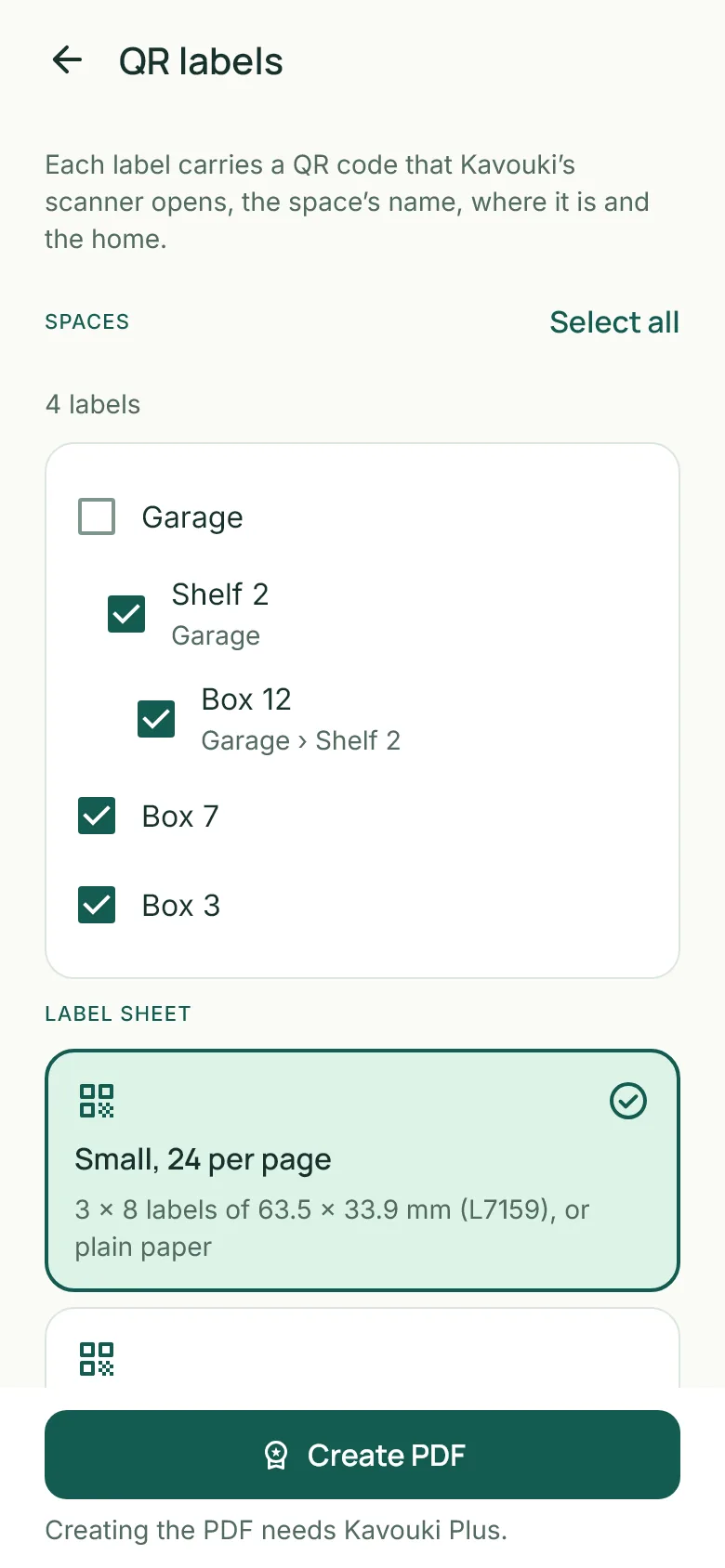
Result: the spaces you want to label are ticked.
2. Create the label PDF
Pick a label sheet
Under Label sheet: Small, 24 per page (3 × 8 labels of 63.5 × 33.9 mm) or Large, 10 per page (2 × 5 labels of 99.1 × 57 mm). Both also work on plain paper, cut by hand.
Tap Create PDF
Without Plus the button carries the Plus mark and the line “Creating the PDF needs Kavouki Plus.” With Plus you see Your labels are ready, with the file name and pages.
Tap Share or Save to files
Send it to a computer next to the printer, or print straight from your phone's share sheet if it offers printing.
Result: a PDF of labels, ready to print. Changing a choice afterwards means making the PDF again.
3. Print and stick
Print at actual size (100 %), not “fit to page”, so the labels line up with the sheet. Each label carries a QR code, the space's name in bold, the home and where the space is, and “Scan with Kavouki”. If moving mode has a room for the box, the label also says where it goes: “→ Kitchen”.
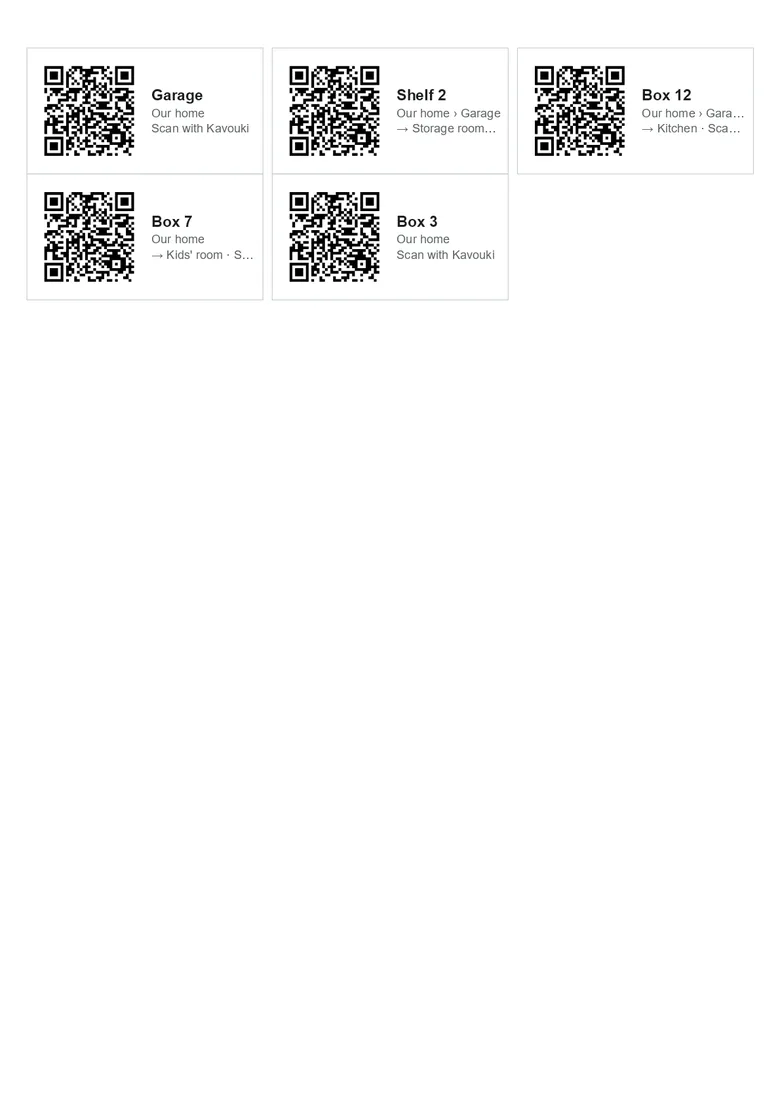
Result: every box tells you what it is, and the QR opens its list in Kavouki.
4. Scan a label
Open Kavouki's scanner
On the Home tab, tap the barcode button inside the search field (Scan a barcode). In moving mode, Scan a box does the same. The first time, allow the camera.
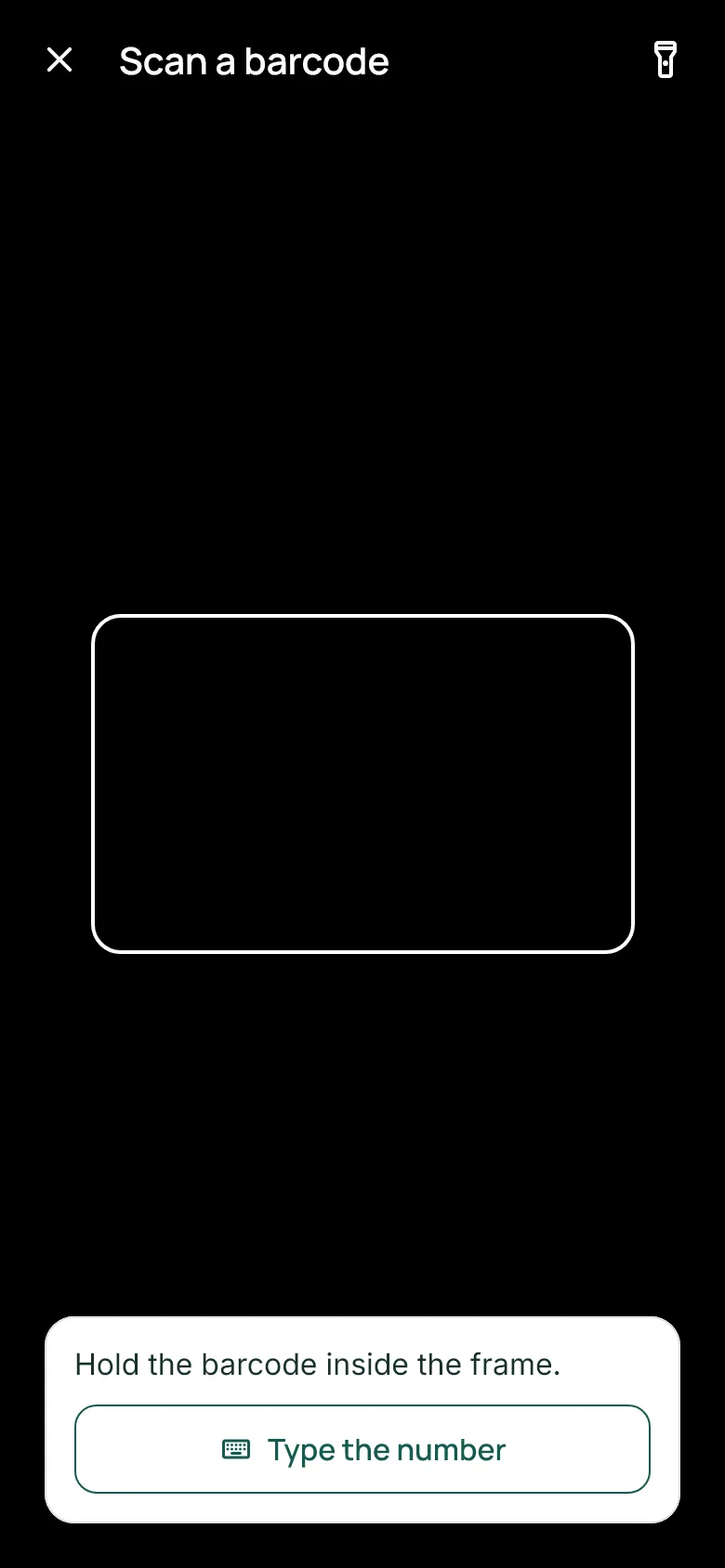
Hold the QR inside the frame
The box opens, with what is inside. If it belongs to another of your homes, Kavouki switches to that home first.
Result: no more opening boxes to find the kettle.
Use Kavouki's scanner, not your phone's camera app. The code is a private link that only Kavouki opens; a camera app just shows its text. That is on purpose: no other app or website can open, or look for, your spaces.
5. Moving mode: packed, moved, unpacked
Open Moving mode
Settings › Reports & tools › Moving mode. Every box and storage space of the home is listed, with “1 of 4 boxes unpacked” and filters: All, Not packed, Packed, Moved, Unpacked.
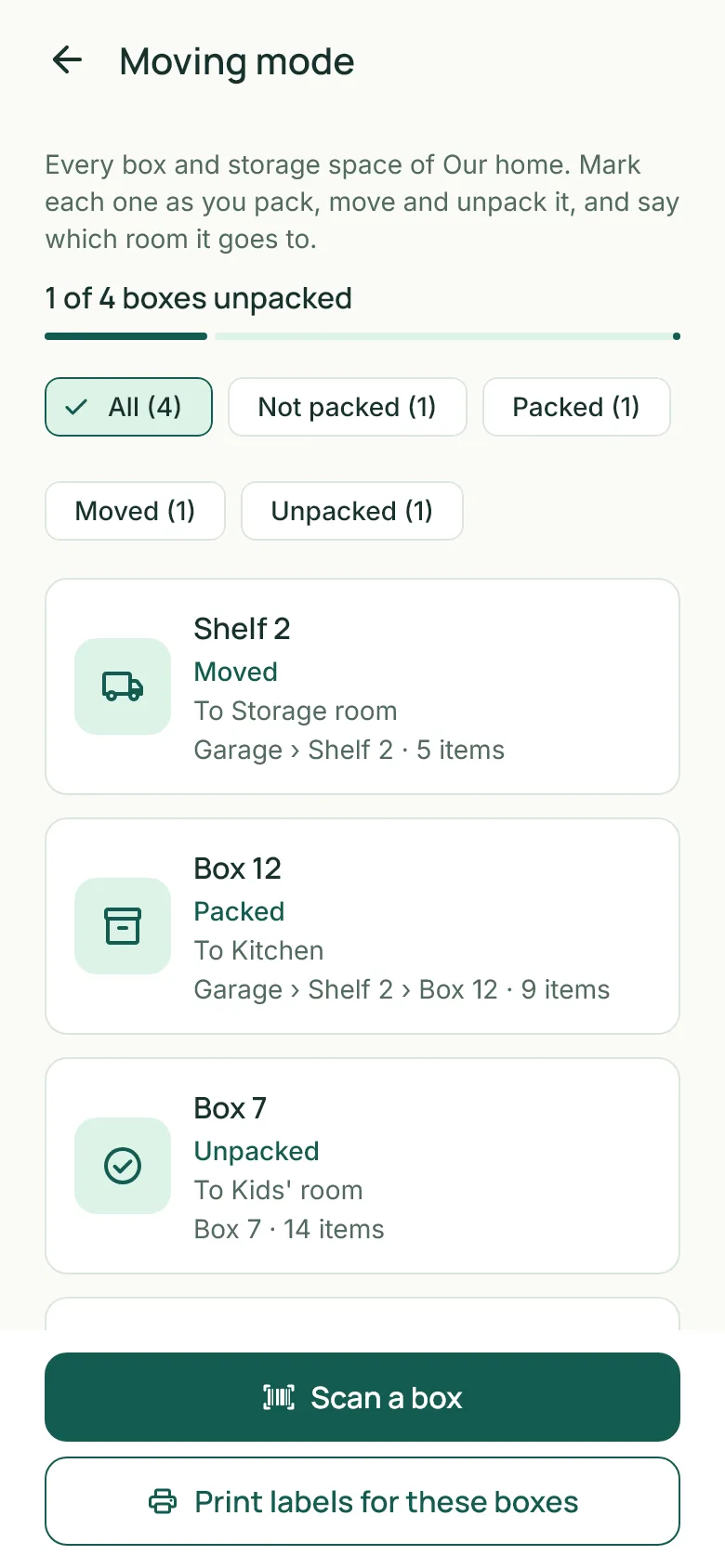
Tap a box and mark it
Choose its state under State, and under Goes to type a room or tap one of Rooms of this home. Tap Save. Without Plus: “Marking boxes needs Kavouki Plus. What you marked stays visible.”
Print labels that say where it goes
Tap Print labels for these boxes. The labels of the boxes shown carry “→ room”, so the movers know where each one goes.
At the new home, scan as you unpack
Tap Scan a box and scan a label: the box opens, with a Moving card. Tap Change to mark it unpacked.
Result: one list tells you what is packed, what arrived and what is still to open.
6. Finish moving
Tap Finish moving
It is at the end of the list. Kavouki asks once: “Every box forgets its state and the room it goes to. The boxes and what is in them stay.”
Confirm
The states and rooms are cleared. Finishing never needs Plus.
Result: your boxes are ordinary spaces again, with everything still in them.
Where your data goes
The label PDF is made on your phone and leaves it only when you share or save it. A printed label shows the space's name, the home's name and where the space is, so anyone who reads the box sees them; leave an address out of your home's name if that matters to you. The QR code holds only a random link with no names or contents, which only Kavouki opens.
If something goes wrong
- “Choose at least one space.” Tick a space, then create the PDF.
- “No spaces yet” or “No boxes yet”. Add rooms, storage and boxes in Spaces first.
- The labels do not line up with the sheet. Print at 100 % (actual size), not “fit to page”.
- “This label is for a box that is not on this phone”. The box is on another phone or was deleted. Restoring a backup that has it brings it back.
- No QR labels or Moving mode in Reports & tools. Plus is not on sale yet, so your version may hide them.
Questions
Can my partner scan our labels?
Only on a phone that has the same home: one restored from your backup. A home added with “Add a home from a file” gets new links, so labels printed on your phone do not open there; print new ones from that phone.
Do I need special label sheets?
No. Both layouts print on plain A4 with lines to cut along. Label sheets of the same size just save the scissors.
Does Kavouki need the internet to read a label?
No. The camera picture is read on the phone and never saved, and nothing is looked up.
Does moving mode move my things to a new home in Kavouki?
No. It records each box's state and the room it goes to. The boxes and their contents stay where they are in Kavouki until you move them.
Still stuck? Write to support@kavouki.com with your phone model, the version in Settings › About, the label size you printed and what you see. Settings › Help & support › Copy diagnostics gives you a short, anonymous list to paste in.